



How to configure automatic updates in JetHost WordPress Manager
The Auto Updates tab in JetHost WordPress Manager allows you to configure automatic updates for WordPress core, plugins, and themes. In particular, this feature ensures your WordPress installation stays current with the latest security patches and features without manual intervention. Furthermore, you can enable auto-updates selectively – choosing to automatically update WordPress core while manually controlling plugin and theme updates, or vice versa.
Accessing auto-update settings
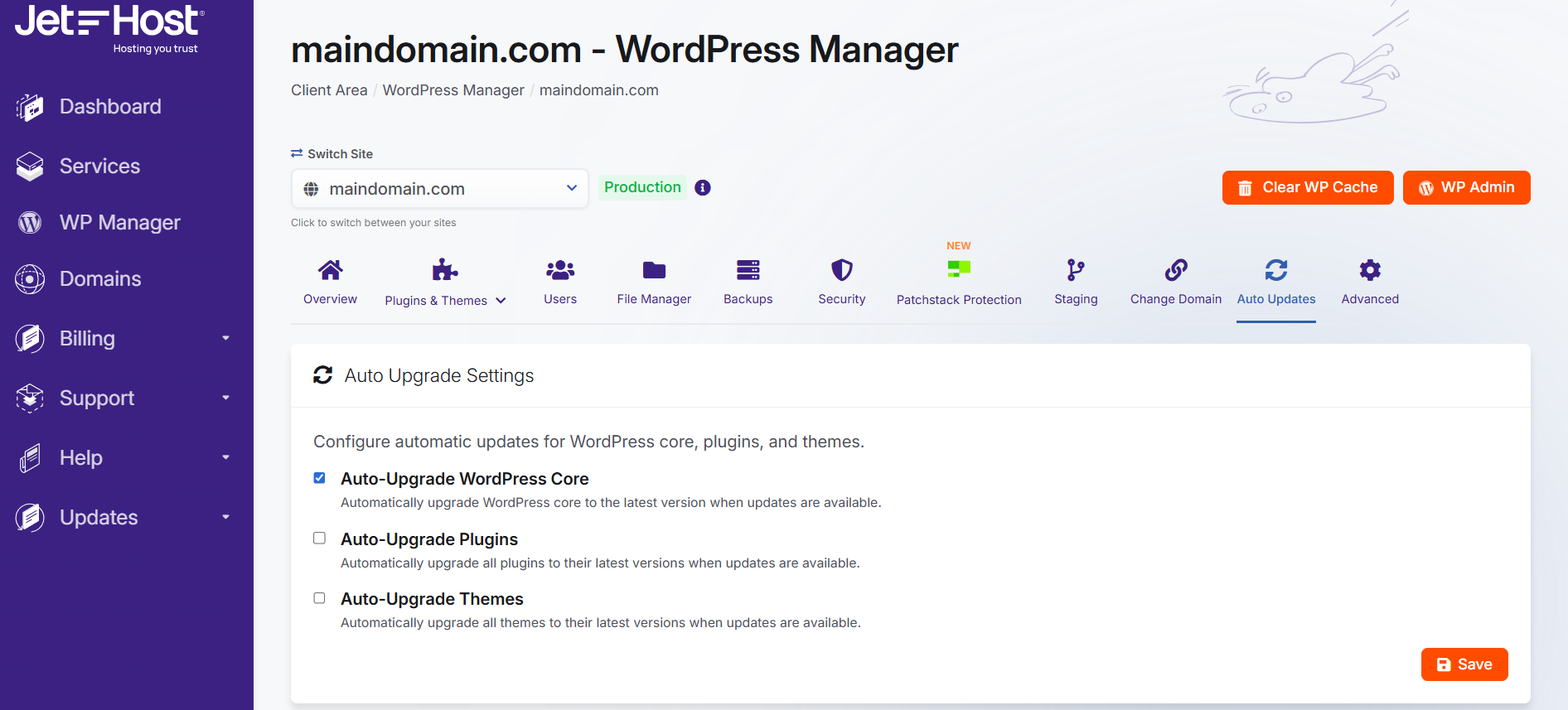
To access automatic update configuration, navigate to the Auto Updates tab from the top navigation menu in WordPress Manager. Once there, you’ll see three distinct options for automating different types of WordPress updates, each with a checkbox and description.
Understanding auto-update options
WordPress Manager provides granular control over what updates automatically:
Auto-upgrade WordPress core
This option automatically upgrades WordPress core to the latest version when updates become available. WordPress core updates include security patches, bug fixes, and new features. Moreover, keeping WordPress core updated is critical for security, as outdated versions are primary targets for attackers. Consequently, enabling this option ensures your site receives important security updates promptly.
Auto-upgrade plugins
When enabled, this option automatically upgrades all plugins to their latest versions when updates are available. Plugin updates often include security fixes, compatibility improvements, and new features. Additionally, outdated plugins represent significant security vulnerabilities, making automatic updates valuable for maintaining site security.
Auto-upgrade themes
This option automatically upgrades all WordPress themes to their latest versions when updates become available. Theme updates typically address security issues, add new features, and improve compatibility with the latest WordPress version. Similarly, keeping themes updated prevents compatibility problems and security vulnerabilities.
Configuring auto-updates
To enable any auto-update option, simply check the box next to the desired feature. After selecting your preferences, click the orange Save button at the bottom of the form to apply your settings. The configuration takes effect immediately, and WordPress will automatically update the selected components when new versions are released.
Mixing automatic and manual updates
You can enable any combination of auto-update options based on your comfort level and requirements. For instance, you might enable automatic WordPress core updates for security but prefer to manually test plugin and theme updates before applying them. This flexibility lets you balance convenience with control.
Benefits of automatic updates
Enabling automatic updates provides several significant advantages:
Enhanced security
Security patches are applied immediately upon release, minimizing the window of vulnerability. Attackers often exploit known vulnerabilities in outdated WordPress installations within hours of security patches being released. Therefore, automatic updates significantly reduce your exposure to these threats.
Reduced maintenance burden
Automatic updates eliminate the need to manually check for and apply updates regularly. Consequently, you save time and ensure updates aren’t forgotten or delayed. Moreover, this is particularly valuable if you manage multiple WordPress sites.
Improved compatibility
Staying current with updates ensures your site benefits from the latest compatibility improvements. WordPress, plugins, and themes evolve continuously, and updates often include fixes for compatibility issues between components. Additionally, newer versions typically work better with modern PHP versions and hosting environments.
Access to new features
Automatic updates ensure you benefit from new features and improvements as soon as they’re available. Plugin and theme developers continuously enhance their products, and automatic updates let you take advantage of these improvements without manual intervention.
Risks and considerations
While automatic updates offer significant benefits, they also carry some risks to consider:
Potential compatibility issues
Updates can occasionally introduce compatibility problems between plugins, themes, and WordPress core. When updates apply automatically, these issues might appear without warning. However, WordPress Manager’s backup functionality helps mitigate this risk by providing easy restoration options.
Unexpected changes
Updates sometimes include feature changes or interface modifications that require adjustment. Automatic updates mean these changes occur without advance notice. Consequently, you might need to react quickly to unexpected functionality changes.
Custom code conflicts
If you’ve customized plugins or themes with custom code, updates may overwrite your modifications. For sites with extensive customizations, manual updates might be preferable. Similarly, test customizations thoroughly after updates if using automatic updates.
Best practices for auto-updates
Following these recommendations helps maximize the benefits of automatic updates while minimizing risks:
Always enable WordPress core auto-updates
WordPress core security updates are critical and rarely cause issues. Enable automatic core updates at minimum, even if you prefer manual control over plugins and themes. This ensures you’re protected against known vulnerabilities promptly.
Maintain recent backups
Keep current backups so you can quickly restore if an automatic update causes problems. Ideally, create backups automatically before updates occur. Moreover, verify your backups are complete and restorable periodically.
Test on staging first
Enable automatic updates on your staging environment before enabling them on production. This lets you identify potential problems in a safe environment. Additionally, you can configure staging to auto-update immediately while keeping production on manual updates initially.
Monitor your site after updates
Check your site regularly to ensure automatic updates didn’t cause issues. Set up uptime monitoring to alert you if your site becomes inaccessible. Similarly, test critical functionality periodically to catch problems early.
Start conservatively
If unsure about automatic updates, start by enabling only WordPress core auto-updates. After confirming this works well, gradually enable plugin and theme auto-updates. Consequently, you can build confidence in automatic updates incrementally.
Review update notifications
WordPress typically sends email notifications after automatic updates complete. Read these notifications to stay informed about what changed. Additionally, review plugin and theme changelogs to understand what each update includes.
Recommended configurations
Choose an auto-update strategy based on your site type and technical comfort level:
Maximum security (recommended for most sites)
- ✅ Auto-upgrade WordPress core
- ✅ Auto-upgrade plugins
- ✅ Auto-upgrade themes
This configuration provides optimal security with minimal manual maintenance. It’s ideal for business websites, blogs, and portfolio sites where security and convenience are priorities.
Balanced approach
- ✅ Auto-upgrade WordPress core
- ✅ Auto-upgrade plugins
- ❌ Auto-upgrade themes (manual)
This keeps your site secure while allowing manual control over theme updates, which more commonly affect appearance. Moreover, this works well if you’ve customized your theme and want to verify changes before applying them.
Conservative approach
- ✅ Auto-upgrade WordPress core
- ❌ Auto-upgrade plugins (manual)
- ❌ Auto-upgrade themes (manual)
This provides core security while giving you complete control over plugin and theme updates. Choose this for complex sites with many customizations or critical business functions. Additionally, this approach works well if you prefer to test all plugin and theme updates on staging first.
Combining auto-updates with other features
Auto-updates work alongside other WordPress Manager features for comprehensive site management:
- Backups: Create backups before updates occur
- Staging: Test auto-update behavior on staging before enabling on production
- Security: Combine with security features for comprehensive protection
- Monitoring: Use the overview tab to verify your site remains healthy after updates
Troubleshooting auto-update issues
Site breaks after automatic update
If your site becomes inaccessible after an automatic update, restore from your most recent backup. Then disable auto-updates temporarily and apply updates manually while troubleshooting the cause. Additionally, check error logs via File Manager to identify which update caused the problem.
Updates not applying automatically
If updates aren’t applying despite being enabled, verify you saved the auto-update settings. Additionally, check that WordPress cron is functioning correctly. Contact JetHost support if automatic updates consistently fail to apply.
Partial functionality after update
If some features stop working after an automatic update, clear your WordPress cache and regenerate permalinks. Additionally, check for plugin conflicts by temporarily disabling plugins one at a time. Similarly, verify your theme is compatible with the updated WordPress version.
Need more help?
Explore more WordPress Manager guides and hosting tutorials in our knowledgebase. The WordPress Manager is included free with all hosting for WordPress plans at JetHost.
For additional support with automatic updates or WordPress maintenance, our team is here to help you keep your website current and secure.










