



How to create a PostgreSQL database?
PostgreSQL is a powerful open-source database, and it’s available on your JetHost hosting alongside MySQL. The quickest way to set one up is the PostgreSQL Database Wizard in cPanel, which creates the database, a user, and the privileges in one guided flow. This guide walks you through it.
Open the PostgreSQL Database Wizard
- Log in to cPanel.
- In the Databases section, click PostgreSQL Database Wizard.
Step 1: Name the database
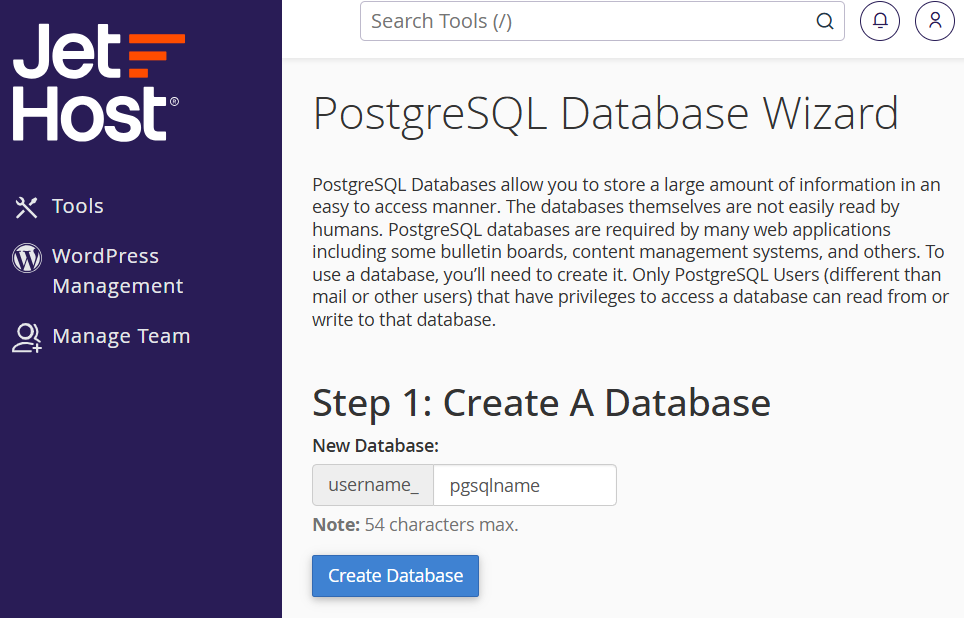
Enter a short, descriptive database name. cPanel adds your account name as a prefix automatically, so the full name looks like accountname_appdb. Click Next Step.
Step 2: Create the user
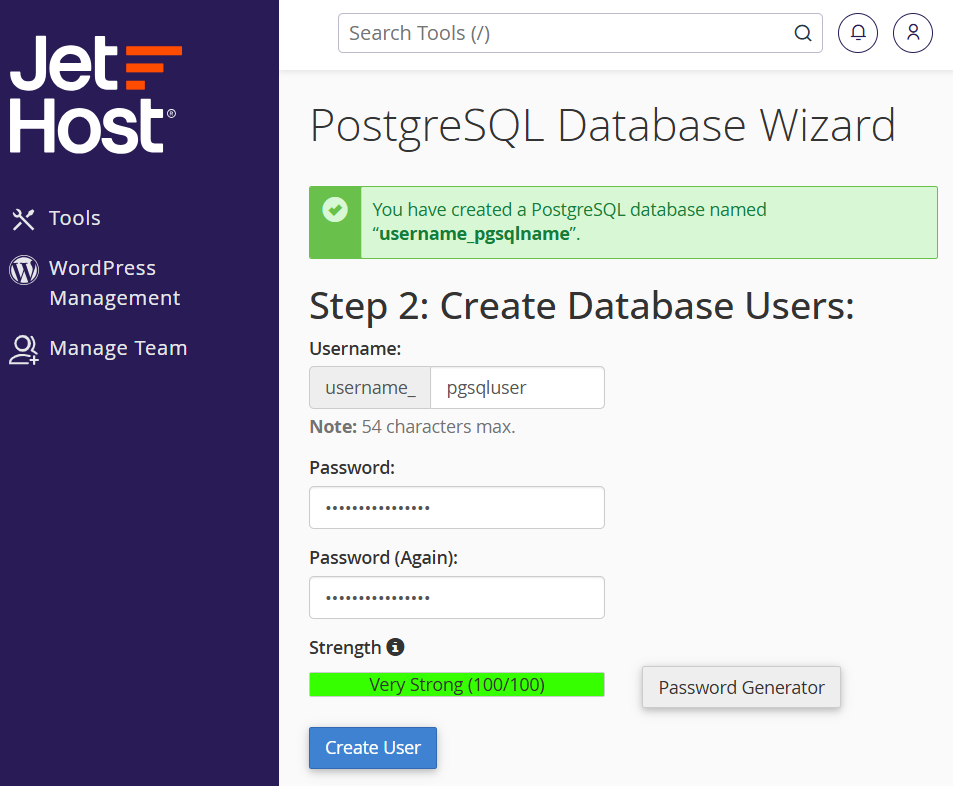
Type a username (also prefixed automatically) and set a strong password in both fields, or use the Password Generator. Click Create User.
Step 3: Assign privileges
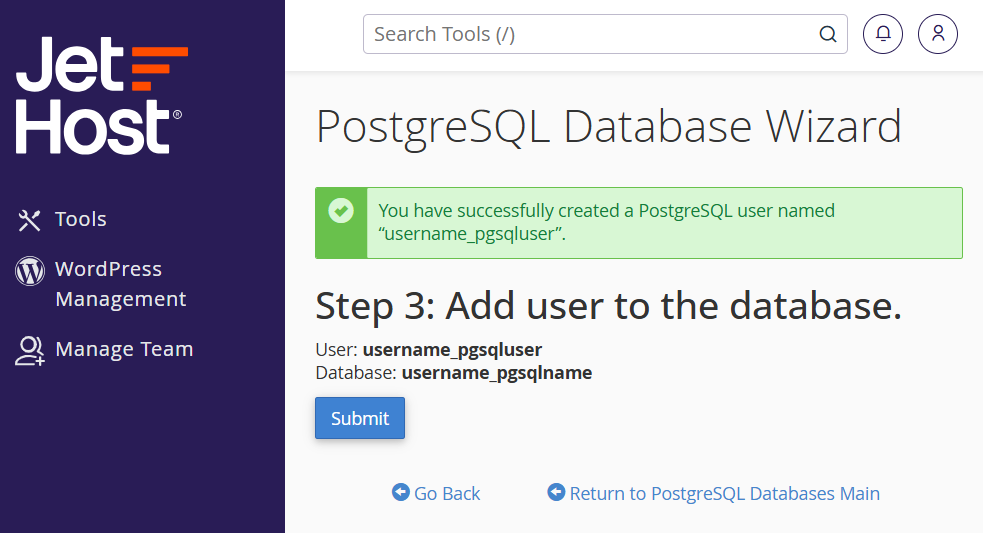
On the privileges screen, select Submit, then finish the wizard. Your database and user are now linked and ready to use.
Connection details for your app
Point your application at the new database with these values: the full database name and username (both with the account prefix), the password you set, localhost as the host, and PostgreSQL’s default port 5432. Keep the credentials in a password manager so they’re easy to find later. To manage the data itself – run queries, browse tables, or import a file – open phpPgAdmin from the Databases section.
JetHost Experts Tip
Most WordPress and WooCommerce setups use MySQL, not PostgreSQL. Choose PostgreSQL when your application specifically asks for it – if you’re unsure which your app needs, check its documentation before you create the database.
Manage or remove it later
Everything you create here also appears in the PostgreSQL Databases tool in cPanel. From there you can add another user to the database, change a user’s password, or delete a database and user you no longer need. Deleting a database is permanent and removes all its data, so take an export backup first if there’s any chance you’ll want it back. As with MySQL, keep each application on its own database and user, so access stays easy to manage and revoke.
Need more help?
Stuck creating your PostgreSQL database? Open a ticket through Client Area → Support and our team will help.













