



How to Create Pages, Arrange Elements, and Install Plugins with AI Website Builder
AI Website Builder allows you not only to edit content and images, but also to create new pages, arrange elements, and add the extensions you need without going through complex settings. Everything happens directly through the chat assistant.
Creating a New Page
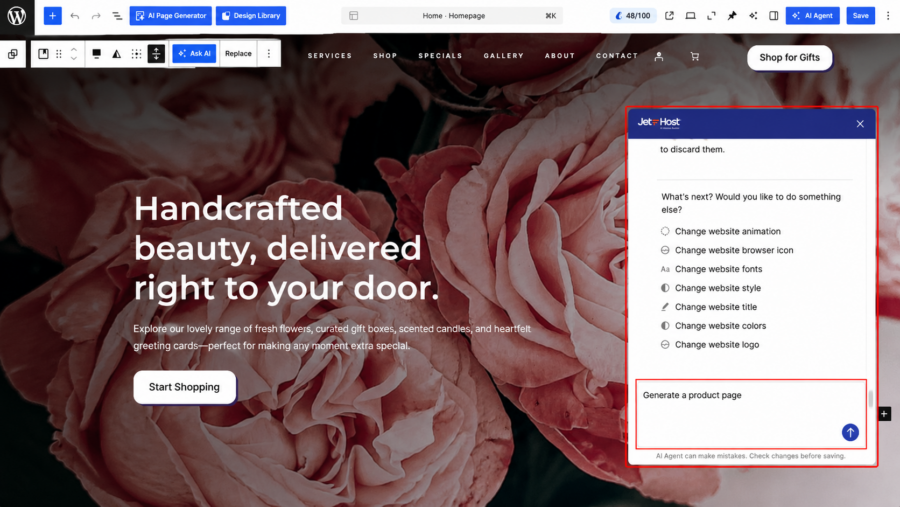
To create a new page, type your request directly in the AI Agent chat, for example: Generate a product page. AI Builder will create the page automatically and show you a Take me there button. After clicking it, you will be redirected to the newly created page.
AI Builder will create the page automatically and show you a Take me there button. After clicking it, you will be redirected to the newly created page.
It is important to keep in mind that the page is created as a draft. This allows you to make additional edits calmly before publishing it.
Arranging and Deleting Elements
Changing the order of elements or deleting them also happens through the chat assistant.
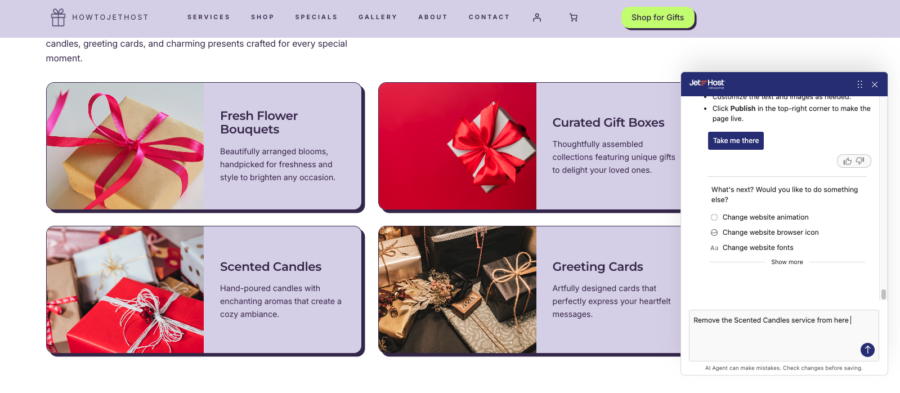
Type what you want to change, for example: Remove this service
AI Builder will make the change and show you a save button, which you can use to confirm the action.
In the same way, you can ask for a specific element to be removed. After confirmation, the changes will be applied immediately.
Installing and Suggesting Plugins
The chat assistant can install plugins for you or suggest a suitable extension based on your needs.
If you already know what you need, you can type a request such as: Install WooCommerce.
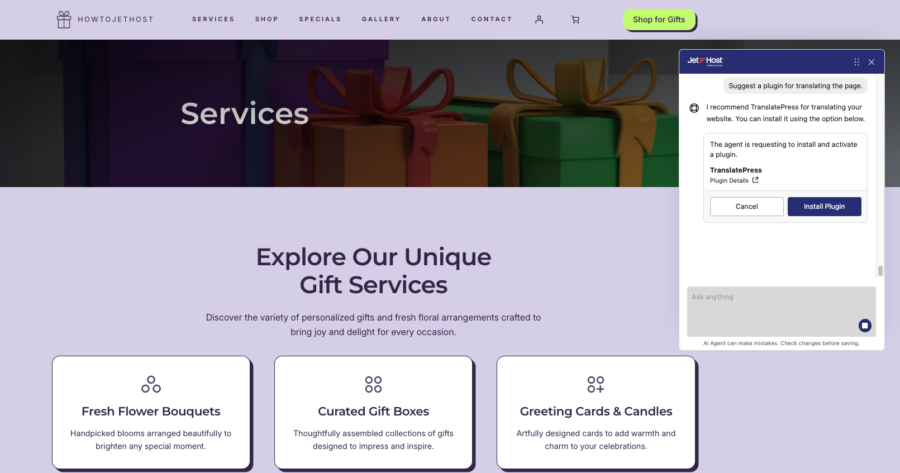
If you are not sure, you can ask something like: Suggest a plugin for translating the page.
After that, you will see an Install button. Once you click it, the plugin will be installed and ready to use. You may choose whether to allow notifications for important updates on that same plugin or to skip without them.
With AI Website Builder, you can build and develop your website step by step without technical difficulties. The chat assistant helps you create content, arrange elements, and add functionality in an intuitive and fast way.
JetHost Experts Tip
Important: When creating a new page, it is good practice to save it as a draft first.
This way, you can test different versions and adjust the content before publishing it and making it visible to your website visitors.
Need More Help?
If you have any questions or experience any difficulties, you can contact the JetHost team directly.













