



How to Fill and Upload Form W-9 (For US Companies/Entities)
If you are a US citizen, a US resident alien, or a US-based entity (such as a Corporation, Partnership, or LLC), you are required to submit Form W-9 (Request for Taxpayer Identification Number and Certification).
Note: If you are NOT a US person or entity, do not use this form. You must submit Form W-8BEN (individuals) or W-8BEN-E (entities) instead.
Step 1: Download the Form W-9
You should always use the latest version of the form provided by the IRS.
Step 2: How to Fill Out the Form
Please follow the instructions below to complete the form. You can fill it out digitally or print it and fill it out with a black pen.
Line 1 (Name):
- Type your name as shown on your income tax return.
- Sole proprietors: List your individual name here.
- Entities: Input the name of the entity.
Line 2 (Business Name):
- If you have a business name, trade name, DBA name, or disregarded entity name different from Line 1, provide it here. Otherwise, leave it blank.
Line 3 (Federal Tax Classification):
- Select one box that applies to your tax status (e.g., Individual/Sole proprietor, C Corporation, S Corporation, Partnership, Trust/Estate).
- LLCs: If you are a Limited Liability Company, check the “Limited liability company” box and enter your tax classification (C, S, or P). Note: Single-member LLCs that are disregarded entities usually check the “Individual/Sole proprietor” box, not the LLC box.
Line 5 & 6 (Address):
- Fill in your mailing address (Street, City, State, ZIP).
- Important: This address should match the address in your JetHost profile to avoid confusion.
Part I: Taxpayer Identification Number (TIN)
- Enter your Social Security Number (SSN) or Employer Identification Number (EIN).
- Individuals/Sole Proprietors: Generally, use your SSN.
- Entities/Corporations/Partnerships: Use your EIN.
Part II: Certification
- Sign Here: Sign the form (digital or hand-signed).
- Date: Enter the current date (MM-DD-YYYY).
Step 3: Upload the Form to JetHost
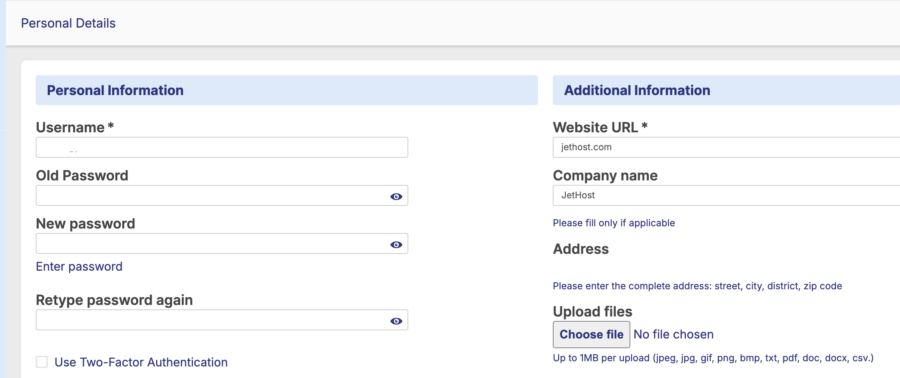
Once your form is completed and saved, follow these steps to upload it to your JetHost Affiliate Panel.
- Log in to your JetHost Affiliate Panel:
https://affiliates.jethost.com/affiliates/login.php#login
- Navigate to My Profile.
- Scroll down to the Additional Information section (located on the right side of the screen).
- Locate the Upload files area at the bottom of that section.
- Click the Choose file button.
- Select your completed W-9 file from your computer.
- Supported formats: jpeg, jpg, gif, png, bmp, txt, pdf, doc, docx, csv.
- File size limit: Maximum 1MB.
- Once the file is selected, scroll to the bottom of the page and click the Save Changes button.
Disclaimer: JetHost does not provide tax advice. The instructions above are a general guide based on IRS documentation. If you are unsure of your tax classification or how to complete the form, please consult a qualified tax professional.










