



How to Convert Images to WebP with JetHost Total Care
Large images are the most common reason a site loads slowly. The Image Converter in JetHost Total Care converts your images to WebP – a modern format with much smaller file sizes than JPEG or PNG at the same quality. This guide shows how to use it, on any JetHost WordPress hosting plan.
Why WebP
WebP compresses images far more efficiently than JPEG or PNG while keeping them sharp. Smaller files mean faster pages, a better experience for visitors, an edge in search rankings, and less space used on your hosting. Every current browser supports WebP, so there’s little downside.
Convert your existing images
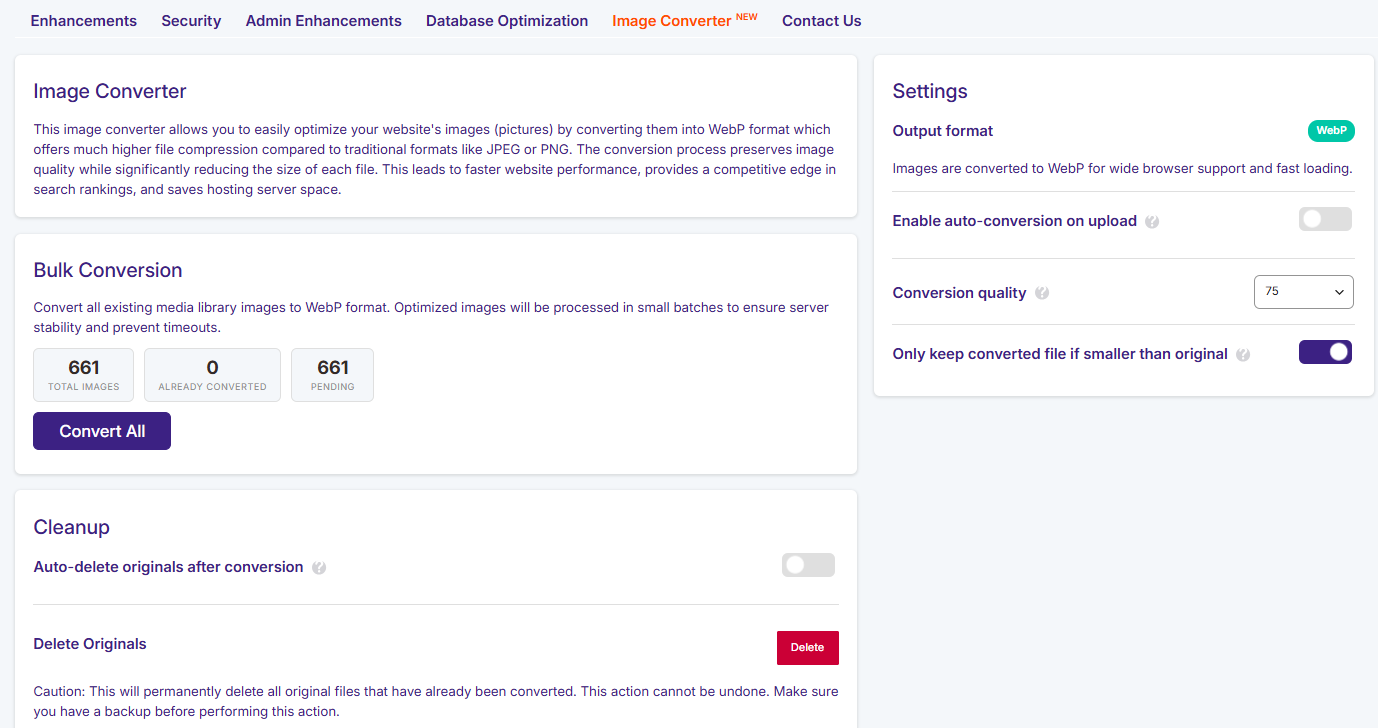
- In your WordPress dashboard, open JetHost Total Care → Image Converter.
- Look at the Bulk Conversion panel – it shows how many images are total, already converted, and pending.
- Click Convert All. Images are processed in small batches to keep the server stable and avoid timeouts.
Settings
The Settings panel gives you a few choices for how conversion works:
- Enable auto-conversion on upload, so new images are optimized automatically as you add them.
- Set the conversion quality – around 75 is a good balance between small files and sharp images.
- Leave “Only keep converted file if smaller than original” on, so a conversion is kept only when it actually saves space.
Cleanup
Once your images are converted, the Cleanup section helps you reclaim space. You can auto-delete each original after it’s converted, or use the Delete Originals button to remove all originals that have already been converted.
Deleting originals is permanent and can’t be undone, so only do it once you have a backup and you’re happy with how the converted images look.
JetHost Experts Tip
Run a bulk conversion once, then turn on auto-conversion on upload. New images are optimized automatically, so your media library stays fast with no ongoing effort.
Need More Help?
Conversion stalling or images not displaying as WebP? Reach out and our team will help.













