



How to Optimize Your Database with JetHost Total Care
Over time your WordPress database fills up with old revisions, auto-drafts, spam comments, and leftover data that quietly slow your site down. The Database Optimization tab in JetHost Total Care cleans all of this out and optimizes your tables – no plugins to stack, no phpMyAdmin. This guide shows how to use it safely on any JetHost WordPress hosting plan.
Why optimize your database
A leaner database means faster queries and a quicker site. Cleaning it helps you:
- Remove old post revisions, auto-drafts, and trashed content you no longer need
- Clear spam, unapproved, and trashed comments
- Delete expired transients and reclaim wasted space
- Defragment your tables so queries run faster
Back up before you optimize
Optimization is an intensive operation. In the rare event the database server is interrupted mid-run, there is a small risk of data corruption, so always take a quick backup first for a safe restore point. You can export your database in a minute from phpMyAdmin.
Check and clean your database
- In your WordPress dashboard, open JetHost Total Care → Database Optimization.
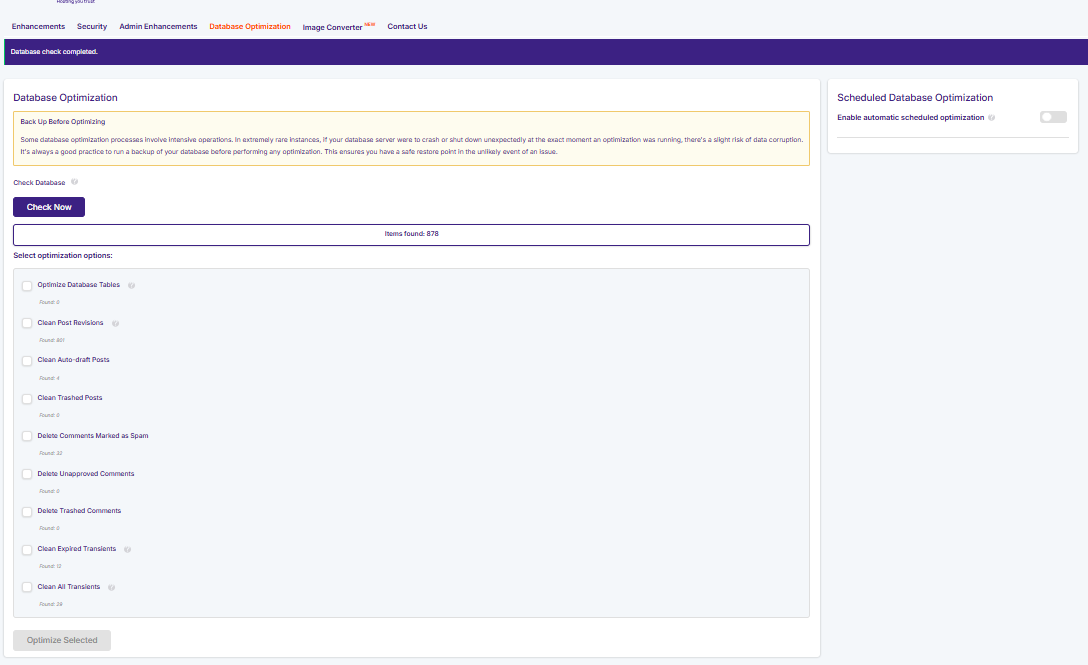
- Click Check Now to scan the database. The tool reports how many items were found.
- Tick the clean-up options you want – each shows how many items it found.
- Click Optimize Selected to run only the options you chose.
The available clean-up options are:
- Optimize Database Tables
- Clean Post Revisions
- Clean Auto-draft Posts
- Clean Trashed Posts
- Delete Comments Marked as Spam
- Delete Unapproved Comments
- Delete Trashed Comments
- Clean Expired Transients
- Clean All Transients
Only tick what you’re sure about – for example, keep some post revisions if you still rely on them.
Schedule automatic optimization
To keep the database tidy without remembering to do it, turn on Enable automatic scheduled optimization in the Scheduled Database Optimization panel. The plugin then runs your chosen clean-up on a regular schedule in the background, so your site stays fast over time.
JetHost Experts Tip
Post revisions are usually the biggest space hog on an older site. Clearing them – then limiting how many WordPress keeps with the Limit Revisions option – keeps the database lean going forward.
Need More Help?
Optimization not completing, or unsure what’s safe to clean? Reach out and our team will help keep your database healthy.













