



How to Password Protect Your Website with JetHost Total Care
Need to hide a site while you build it? The Password Protect the Website option in JetHost Total Care password-protects the entire website to hide the content from public view and from search engine bots and crawlers. Logged-in administrators can still access the site as usual. This guide shows how, on any JetHost WordPress hosting plan.
Password-protect your site
- In your WordPress dashboard, open JetHost Total Care → Admin Enhancements.
- Toggle on Password Protect the Website.
- Set the password visitors will need, and save.
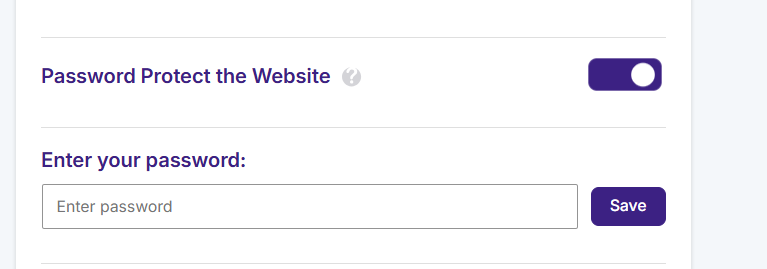
Visitors now see a password prompt instead of your pages, and only those who enter the correct password get through. It’s the simplest way to keep a work-in-progress, a staging site, or a private project away from the public and search engines until you’re ready.
Good to know
This protects the front end for every visitor – it’s not the same as logging in to WordPress. Share the password only with people who need a preview, such as a client or reviewer. When you’re ready to launch, toggle it off and the site becomes public again. While it’s on, consider also turning on Disable Search Engine Indexing so search engines don’t try to index the holding page.
When a site shouldn’t be public yet
There are plenty of moments when you don’t want the world seeing your site: while you build a brand-new site, during a redesign, when sharing a work-in-progress with a client for approval, or on a staging copy used only for testing. WordPress has no simple whole-site password built in, so without this option you’d have to rely on hosting-level tricks. Password Protect the Website gives you that gate in one toggle, showing a password prompt in place of every page.
Keeping an unfinished site out of Google
A password also keeps search engines out, because the content is hidden behind it – which matters, since having an unfinished or duplicate site indexed can hurt your SEO later. For extra certainty while you build, combine it with Disable Search Engine Indexing so crawlers don’t even try. When launch day arrives, switch both off together: the site becomes public and can start being indexed. Share the password only with the people who genuinely need a preview, and remember that administrators who are logged in still see the real site as normal.
JetHost Experts Tip
Launching soon? Keep the site password-protected right up to go-live, then switch both the password and the no-index setting off together so your finished site appears publicly and can start being indexed.
Need More Help?
Password prompt not appearing, or visitors getting through? Reach out and our team will help.













