JetHost MCP keeps getting better! With the latest update, we’ve expanded its capabilities to support VPS and Managed VPS services, alongside new tools for managing your hosting accounts.
You can now check and change PHP settings, add domains, and manage cron jobs directly through ChatGPT, Claude, or another compatible AI assistant. And if you’re using VPS or Managed VPS hosting, you’ll find additional capabilities designed specifically for your service.
Here’s what’s new with JetHost MCP.
1. New Tools for PHP, Domains, and Scheduled Tasks
The first update covers some of the most common website maintenance tasks.
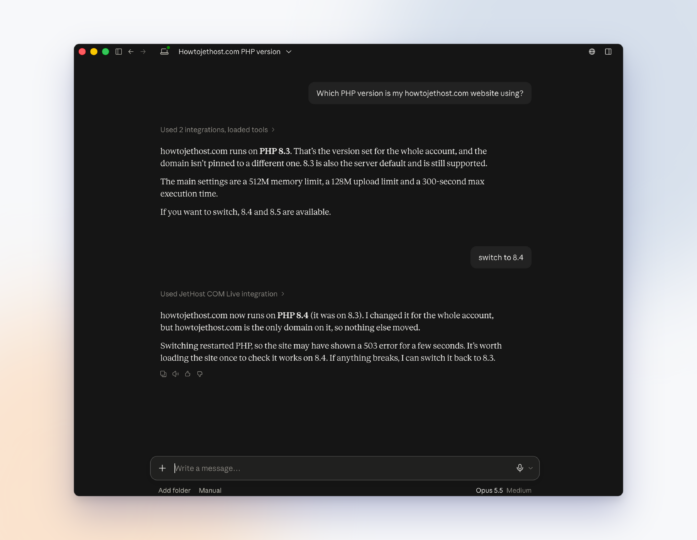
Manage Your PHP Settings
With JetHost MCP, you can now check and change the PHP versions used by your websites, along with settings such as file upload limits, memory limits, script execution time, and active PHP extensions.
For example, you can ask:
Keep in mind that some settings, including memory limits and PHP extensions, apply to all websites using the corresponding PHP version.
Add and Remove Domains
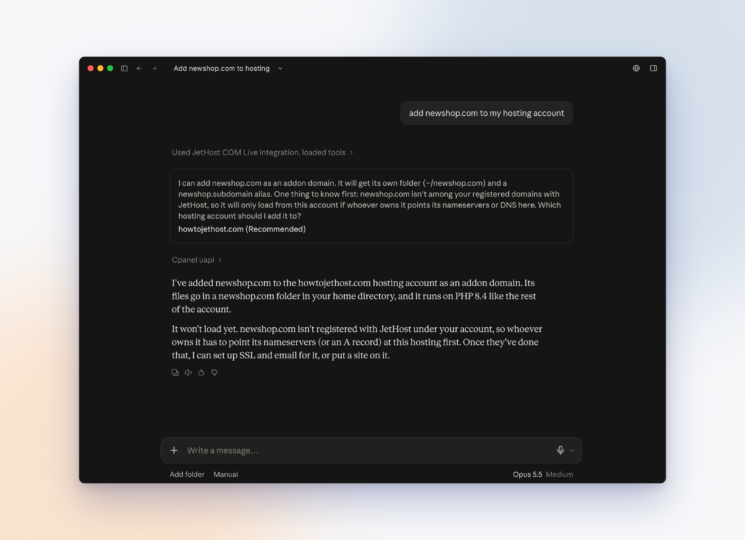
Starting a new project? You can now add another domain to your existing hosting account with a simple request like “Add newshop.com to my hosting account.” Once the domain is added, you can continue setting up your website by installing WordPress or uploading your files.
JetHost MCP also lets you view and remove additional domains, as well as delete subdomains you no longer need. Your AI assistant will ask for confirmation before performing any deletion. Just keep in mind that adding a domain to your hosting account doesn’t register it. The domain must already be registered and pointed to your server.
Set Up Cron Jobs Without Complicated Commands
Cron jobs allow you to run scripts and commands automatically at scheduled times. With JetHost MCP, you no longer need to configure these schedules manually. Instead, you can simply tell your AI assistant what you want to happen and when. For example: “Run the backup.php script every night at 3 AM”.
Your assistant will prepare the configuration and ask for confirmation before applying it. You can also use JetHost MCP to view, edit, or delete existing cron jobs, all through the same conversation. Just keep in mind that the scripts you want to schedule must already be available on your server.
2. Manage Your VPS Server Directly Through AI
The latest JetHost MCP update also introduces new capabilities for VPS customers. You can now check your server’s status, monitor its resources, and perform certain administrative tasks directly through your AI assistant, without having to navigate the client area for every action.
Check Server Status and Manage Your VPS
Need to check whether your VPS is running properly? You can ask your AI assistant to show its current status, operating system, and available resources, including CPU, memory, and disk space. If you’re using a self-managed VPS, you can also start, stop, or restart the server directly through JetHost MCP.
For example, you could say: “Restart my VPS and let me know when it’s ready again.” Before proceeding, your assistant will ask for confirmation and warn you about any potential service interruptions. It will then track the server’s status and let you know when it’s back online.
Network Settings and Security
JetHost MCP also gives you more control over your VPS network settings. You can check assigned IP addresses, manage firewall rules, configure reverse DNS, and review bandwidth usage for periods of up to 90 days.
For instance, if you want to restrict SSH access to a specific IP address or check which ports are currently open, you can make the request directly through your AI assistant instead of logging into your client area and looking for the relevant settings.
Snapshots and Console Access
Planning to make changes to your VPS? Before you begin, you can ask JetHost MCP to create a snapshot, capturing the server’s current state. You can also view and delete existing snapshots through your AI assistant, making it easier to keep track of them.
If you run into a situation where SSH access isn’t working, JetHost MCP can also provide a one-time link to your server’s console. The link remains valid for up to 10 minutes, and you’ll need your root password to log in. Keep in mind that restoring a snapshot or reinstalling the operating system still requires assistance from the JetHost technical support team.
3. JetHost MCP Now Supports Managed VPS With cPanel
The third major addition is support for Managed VPS services that use cPanel. With this integration, JetHost MCP provides access to all cPanel accounts within your Managed VPS service, allowing you to manage individual websites through a single conversation with your AI assistant instead of logging into each control panel separately.
For example, you can ask: “Which websites are hosted on my VPS, and how much disk space is each one using?” Your assistant will display the available cPanel accounts, their primary domains, and the disk space they’re using. From there, you can continue with specific tasks, such as creating an email address, adding a subdomain, managing files and databases, checking SSL certificates, or configuring cron jobs for a particular account.
If your request doesn’t specify which website or account you’re referring to, the assistant will ask you to clarify before proceeding. This ensures that each action is performed only within the selected cPanel account, rather than across all accounts on the server.
This integration is designed specifically for Managed VPS services using cPanel. It doesn’t support DirectAdmin or administrative actions at the WHM level, and the management of the Managed VPS server itself remains the responsibility of the JetHost technical team.
The New Capabilities Are Already Available
All these new capabilities are already available through JetHost MCP. Whenever you request an action that changes settings or could affect the operation of your websites or servers, your AI assistant will first explain what it’s about to do and ask for confirmation. Access is also limited to the services and features you’re authorized to use.
If you’ve already connected JetHost MCP to ChatGPT, Claude, or another compatible AI assistant, there’s nothing else you need to set up. The new tools are available through your existing integration, so you can start using them right away.
Learn more about JetHost MCP and how to connect it to your AI assistant.


Top articles
Our Picks
- 6 minutes read
7 Signs It’s Time to Switch Your Web Hosting Provider
Most people don’t think about their hosting until something breaks. But if your website has been acting up – slower pages, random errors, or unreliable support – it might be…
- 4 minutes read
eDesign Interactive on Pressure, People & Creativity
Client: George, CEO of eDesign Interactive Industry: Web Design, Digital Strategy & Interactive Marketing Website: edesigninteractive.com Relationship: Long-time collaboration with the team behind JetHost
- 2 minutes read
Case Study: How SEO Rush Got 5x Faster with JetHost
Client: SEORUSH Industry: SEO & Digital Marketing Website: seorush.org Service: JetHost WordPress Hosting When you run an SEO agency, your website needs to perform as well as the results you…
Related Posts
 5 minutes read
JetHost MCP v2 Is Here: Controlled AI Access for Teams and Agencies
Just a few months after introducing the JetHost MCP Server, we’re launching its second version. It’s designed for web agencies and studios, but it’s also useful for any customer who…

 7 minutes read
Manage Your Hosting with a Single Prompt: Meet the JetHost MCP Server
Just a short time ago WordPress security used to feel almost straightforward – installing a security plugin and using a strong password etc used to be enough. Currently we are…