Just a few months after introducing the JetHost MCP Server, we’re launching its second version. It’s designed for web agencies and studios, but it’s also useful for any customer who wants to give an external specialist or agency limited access to their services.
With the new version, you decide who can access what. You can create a separate access key for a specific employee, developer, or partner and choose which client accounts, services, and domains they can access, as well as which actions they can perform through their AI assistant.
More Control with Individual Access Keys
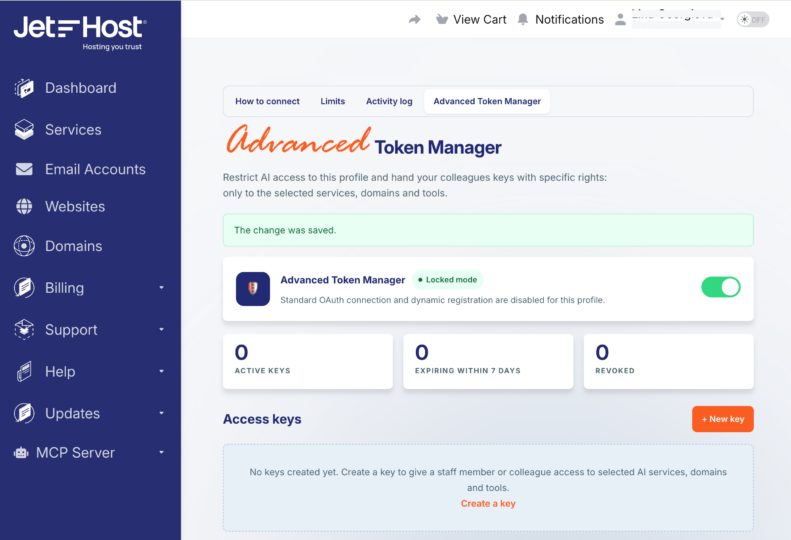
JetHost MCP v2 includes the Advanced Token Manager. The owner of a JetHost client account can enable it and create access keys for selected people. They don’t need their own JetHost login credentials to use the access you provide.
For each key, you can define:
For a connected client account where you have delegated access, you can only grant permissions within the scope of the permissions already assigned to you. If the owner restricts those permissions, the corresponding AI access is also restricted from the next request.
This way, everyone gets only the access they need for their work. For example, you can allow a developer to work with a specific service and selected cPanel modules without giving them access to the entire client account.
Actions performed with the key are recorded in the activity logs under the name you assign to it. Use a separate key for each person so you can associate individual actions with the access you’ve provided.
You can change a key’s permissions at any time. Changes take effect immediately, without issuing a new token or reconnecting the AI tool.
OAuth and API Tokens
Each key in the Advanced Token Manager supports two connection methods:
The Advanced Token Manager is intended for users who are comfortable managing permissions and configuring external tools. Treat both the API token and OAuth identifier like a password. Share them securely and only with the person the key is intended for.
How to Grant Access
Before enabling the Advanced Token Manager, keep in mind that doing so revokes all tokens previously issued through the standard OAuth process for the account. Existing connections that use those tokens will need to be set up again using an access key you create. While the Advanced Token Manager is enabled, new access can only be granted through these keys.
If you don’t enable it, the standard OAuth connection continues to work as before.
Open the Advanced Token Manager in your Client Area and:
The connection details are shown only once when the key is activated. Copy them immediately and store them securely. If you lose the API token, you can issue a replacement after confirming the action with a new PIN.
You can revoke a key immediately whenever necessary. This simultaneously terminates access through the API token and any OAuth connections associated with that key. Access also ends when the key expires.
To disable the Advanced Token Manager itself, you must first revoke all existing keys.
When Is the Advanced Token Manager Useful?
If You Manage Your Own Website
You can give your agency or developer AI access only to the services they manage for you. There’s no need to share your main login credentials or give them access to your entire account.
If You Run an Agency
You can create separate access keys for individual developers or external partners. Each key can have a different scope and permissions based on that person’s tasks and the permissions your clients have granted you.
If You Work with External Specialists
You can provide limited, time-bound access for a specific project and revoke it as soon as the work is complete.
JetHost MCP v2 gives you more flexibility to use AI tools without losing control over your client accounts, services, and domains. Each person gets an individual access key with clearly defined permissions, while you remain in control of their access as tasks and responsibilities change.
Open the Advanced Token Manager to create your first access key.