7 minutes read

Imagine asking your AI assistant (ChatGPT, Claude, etc.) “Which of my services renew in the next 30 days, and what will each one cost?”, and getting an accurate answer in seconds.
No logging into multiple dashboards. No searching through invoices. No opening support tickets.
That’s exactly what the JetHost MCP Server makes possible.
The way we manage hosting is changing. Instead of navigating control panels and switching between tools, you can now simply ask questions in plain English and let AI do the heavy lifting.
What Is MCP?
MCP (Model Context Protocol) is an open standard that allows AI assistants such as ChatGPT, Claude, Cursor, and others to securely connect to external systems and perform actions on your behalf.
JetHost now includes native MCP support, allowing your AI assistant to become a powerful co-pilot for managing your hosting account.
Once connected, your AI assistant can retrieve information, analyze data, troubleshoot issues, and even perform specific account actions—all through natural conversation.
What Can the JetHost MCP Server Do?
After connecting your JetHost account, you can ask your AI assistant to:
- View services and domains: see what’s active, when products expire, and what upcoming renewals will cost
- Review invoices and payment history: instantly find billing information without manually searching through your account
- Analyze website traffic: discover where visitors come from and which pages perform best
- Monitor CPU usage: track resource consumption in real time or review historical trends
- Browse server logs: troubleshoot website problems in seconds
- Deploy websites directly from Git repositories: launch applications from public or private repositories with a single instruction
- Manage cPanel resources: create email accounts, edit DNS records, manage databases, install SSL certificates, and more
- Search for available domains and get suggestions: brainstorm and register your next domain without leaving the conversation.
Everything happens through natural language. Just ask your AI assistant the same way you would ask a colleague.
Built with Security in Mind
Security is built in from day one.
The JetHost MCP Server uses OAuth 2.1 authentication, with JetHost acting as the sole identity provider. You sign in using your existing JetHost credentials, including two-factor authentication if enabled.
Access tokens are short-lived (15 minutes) and refresh automatically, reducing security risks while keeping the experience seamless.
By default, the MCP operates in read-only mode, meaning nothing in your account can be changed without your explicit permission.
Any action that can modify your account, such as deploying a website or managing cPanel resources requires dedicated OAuth permissions that you approve during authorization.
You remain in full control at all times.
You can review and revoke access for any connected AI assistant whenever you want from the Authorized AI Connectors section in your JetHost Client Area..
Getting Started
Connecting your account takes only a few minutes:
- Log in to your JetHost Client Area.
- Open the JetHost Connect page and copy your MCP server URL.
- Add the URL to your AI assistant’s MCP settings (ChatGPT, Claude, Cursor, etc.).
- Authorize the connection using your JetHost account.
- Start asking questions.
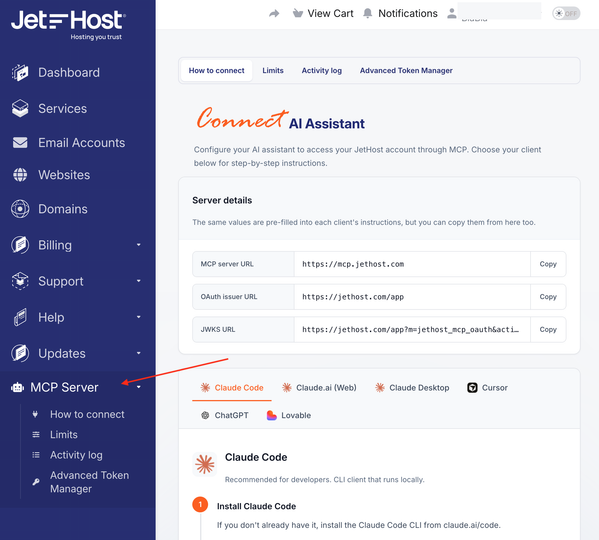
That’s it. Your AI assistant is now ready to help manage your hosting account.
Wondering if AI can build a site from scratch? Read our article on creating a website with ChatGPT.
Example Prompts to Try
Here are a few examples you can try immediately after connecting.
Renewals and Billing
“Which of my services and domains renew in the next 30 days, and what will each one cost?”
Get a clear overview of upcoming renewals and avoid unexpected charges.
Troubleshooting Website Errors
“My site is showing a 500 error. Check the PHP error log for the last hour and tell me what’s failing.”
The MCP retrieves the relevant log entries and explains the likely cause of the issue—no SSH access or manual log searches required.
Monitoring Resource Usage
“Show my CPU usage for this month day by day and tell me if there’s an unusual spike.”
Identify resource spikes before they impact website performance or generate additional costs.
Deploying a Website
“Deploy my portfolio from https://github.com/me/portfolio (main branch) to example.com, then confirm what’s now live.”
Deploy and verify a website with a single instruction—no FTP client or control panel required.
Deploying a Private Repository
“I want to deploy my private repo git@github.com:me/app.git to example.com. Set up a deploy key, tell me what to paste into GitHub, then deploy the main branch.”
The MCP can generate deploy keys, guide you through the setup process, and complete the deployment.
Managing Email Accounts
“List the mailboxes on example.com, then create a new one, jane@example.com, with a 2 GB quota.”
Manage email accounts directly from the conversation without opening cPanel.
Finding the Perfect Domain
“I’m launching a bakery brand. Suggest a few available .com and .bg domains, and tell me which JetHost plan includes one for free.”
Brainstorm domain ideas, check availability, and compare hosting plans in a single conversation.
Viewing Account Health
“Give me a full overview of my JetHost account: services and their status, domains and expiry dates, unpaid invoices, and any open tickets.”
Get a complete snapshot of your account whenever you need it.
Managing DNS Records
“Show the DNS records for example.com, then add a TXT record for domain verification.”
Handle DNS changes through natural language instead of navigating zone editors.
Rolling Back a Deployment
“Show the deploy history for example.com and roll it back to the version from before today’s deploy.”
Recover from failed deployments in seconds.
Even More Ways the JetHost MCP Server Saves You Time
SSL Certificate Management
Managing SSL certificates often means digging through multiple control panel screens and keeping track of renewal dates.
With the JetHost MCP, you can simply ask:
“Check the SSL certificate status for example.com and let me know when it expires.”
The MCP can inspect certificate status, report expiration dates, and even help you install new certificates or trigger AutoSSL renewals—all through a simple conversation.
WordPress Site Health at a Glance
Running a WordPress website?
The MCP can combine traffic analytics, server logs, and resource usage into a single health report.
For example:
“Give me a health check for my WordPress site on example.com: summarize this month’s traffic, check the PHP error log for the past 24 hours, and tell me if my CPU usage has spiked recently.”
Within seconds, you’ll receive:
- visitor and traffic trends
- summaries of PHP errors and plugin conflicts
- CPU usage insights and potential performance concerns
What previously required multiple tools and several minutes of investigation can now be accomplished in a single conversation.
Why This Matters
Managing a hosting account has traditionally meant switching between dashboards, reviewing invoices, searching through logs, and navigating complex control panels.
The JetHost MCP turns all of that into a conversation.
Whether you’re a developer managing multiple projects, a freelancer supporting clients, or a business owner running your online presence, the MCP helps you spend less time managing infrastructure and more time focusing on your business.
Hosting management doesn’t have to be complicated anymore.
Ready to Get Started?
Try the JetHost MCP Server today and experience a faster, smarter, and more intuitive way to manage your hosting.
Visit JetHost hep center and discover what AI-powered hosting management looks like.


Top articles
Our Picks
- 6 minutes read
7 Signs It’s Time to Switch Your Web Hosting Provider
Most people don’t think about their hosting until something breaks. But if your website has been acting up – slower pages, random errors, or unreliable support – it might be…
- 4 minutes read
eDesign Interactive on Pressure, People & Creativity
Client: George, CEO of eDesign Interactive Industry: Web Design, Digital Strategy & Interactive Marketing Website: edesigninteractive.com Relationship: Long-time collaboration with the team behind JetHost
- 2 minutes read
Case Study: How SEO Rush Got 5x Faster with JetHost
Client: SEORUSH Industry: SEO & Digital Marketing Website: seorush.org Service: JetHost WordPress Hosting When you run an SEO agency, your website needs to perform as well as the results you…
Related Posts
 4 minutes read
JetHost Managed VPS: The Power of Your Own Server, Without the Hassle of Server Management
JetHost is expanding its hosting portfolio with Managed VPS, designed for website owners and businesses that need guaranteed resources and VPS-level performance without having to manage a server themselves.

- 5 minutes read
JetHost MCP v2 Is Here: Controlled AI Access for Teams and Agencies
Just a few months after introducing the JetHost MCP Server, we’re launching its second version. It’s designed for web agencies and studios, but it’s also useful for any customer who…
- 3 minutes read
Meet the JetHost DNS Manager: DNS Without the Headache
DNS is one of those things nobody thinks about until it breaks. Then it is the only thing anyone thinks about. For a long time, changing DNS at JetHost meant…