High traffic is usually good news for an online store. But when a site suddenly starts slowing down at the exact same time analytics show a huge spike in visits, the story can be very different.
I recently came across exactly that situation on a client’s WooCommerce store. The site would load normally one moment, then slow down the next. At the same time, the traffic reports showed more than 166,000 visits in a single day, an unusually high number for what was normally a fairly quiet online store.
| Day | Visits | Pages | Hits | Bandwidth |
|---|---|---|---|---|
| Sep 1, 2026 | 12,224 | 15,003 | 23,157 | 845.53 MB |
| Sep 2, 2026 | 25,586 | 29,290 | 37,200 | 1.75 GB |
| Sep 3, 2026 | 49,824 | 55,417 | 62,212 | 2.17 GB |
| Sep 4, 2026 | 36,890 | 41,266 | 49,694 | 2.32 GB |
| Sep 5, 2026 | 59,157 | 64,420 | 71,098 | 2.40 GB |
| Sep 6, 2026 | 110,456 | 121,130 | 130,015 | 2.04 GB |
| Sep 7, 2026 | 166,141 | 184,003 | 193,033 | 1019.67 MB |
| Sep 8, 2026 | 52,318 | 58,068 | 65,025 | 1.83 GB |
At first glance, that looks like a fantastic day for the business, but it wasn’t. Those visits weren’t coming from potential customers, they were coming from bots crawling product filters and generating a massive number of requests to the server.
In this article, I’ll walk through how we found the source of the load, what WooCommerce filters had to do with it, and how one Cloudflare rule changed the situation completely.
What Was Actually Happening
If you run a WooCommerce store (in this case, one using the WoodMart theme), filters for color, size, price, availability, sorting, and similar options generate URLs with query parameters like these:
/shop/?filter_color=black
/shop/?filter_size=large&query_type_size=or
/shop/?min_price=50&max_price=100&orderby=price
/shop/?filter_category=lighting&stock_status=instock
For a real customer, these are just a few clicks. For a bot, they’re a playground.
Combine several colors, a couple of sizes, a price range, and a sorting option, and suddenly you have tens of thousands of unique URLs. Each one looks like a separate page.
These URLs are also hard to cache effectively. Your caching plugin may store regular pages, but every new filter combination is essentially a cold request. Once it loads, it might get cached, but there may never be another request for that exact combination.
Google describes this problem as faceted navigation, and it’s a well-known issue.
In short, it looked like traffic. In reality, it was more like an attack, just the polite version.
What It Looked Like on the Server
Now let’s look at the server side. The total script and database processing time was reaching around 5,000 to 6,000 minutes per day. That isn’t a CPU percentage. It’s the total amount of processing time spent handling requests.
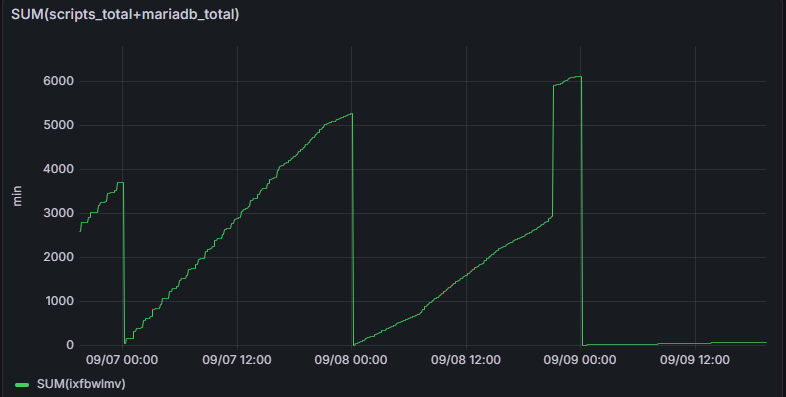
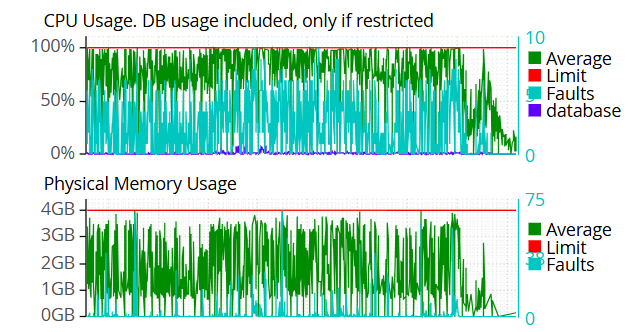
There were no major errors in the logs and no broken plugin causing the issue. CPU usage was hitting 100%, memory was maxing out, and the common factor was requests containing ?filter_ parameters in the URL.
The Cloudflare Rule That Fixed It
I recently came across an article on the WoodMart blog where their team explains this exact problem and suggests a possible solution. I tested it on a real case, and it worked well, so I’m sharing what we did from first-hand experience.
In Cloudflare, go to Security → Security rules → Create rule → Custom rules. Then apply a Managed Challenge to requests containing filter-related query parameters:
(http.request.uri.query contains "filter_") or
(http.request.uri.query contains "per_page=") or
(http.request.uri.query contains "per_row=") or
(http.request.uri.query contains "shop_view=") or
(http.request.uri.query contains "stock_status=") or
(http.request.uri.query contains "min_price=") or
(http.request.uri.query contains "max_price=") or
(http.request.uri.query contains "orderby=")
What does that do? Whenever a request contains one of those filter parameters, Cloudflare serves a Managed Challenge before the request reaches the server. A real visitor completes the check once and continues browsing the site. Most bots don’t get past it.
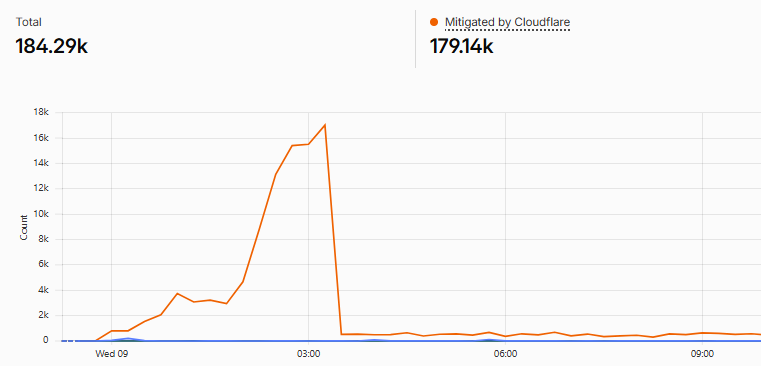
The result was pretty dramatic. Out of more than 184,000 requests, over 179,000 were blocked. The CPU usage spikes we had been seeing disappeared, and most importantly, the site stopped slowing down.
Be Careful Before Applying It
Before copying the rule exactly as it is, there are a few things worth knowing.
Managed Challenge and AJAX Don’t Always Play Nicely
WoodMart filters work through AJAX, while Cloudflare challenge pages don’t always behave perfectly with XHR requests. In practice, the first filtered request may open as a regular page with the challenge. Once the visitor passes it, AJAX filtering usually continues normally.
That’s why testing matters. Try the first filter, then several more, on both desktop and mobile. If challenge content starts appearing inside the filtering interface, don’t leave the rule enabled in that form.
filter_ Is Broad on Purpose
The rule catches parameters such as filter_color, filter_size, filter_category, and anything else beginning with filter_. That makes it convenient, but it also means that if the same string is used elsewhere on your site, legitimate requests could be affected.
After enabling the rule, keep an eye on Security Events in Cloudflare for a few days and adjust the conditions if needed.
The Rule Protects the Store, but It Doesn’t Handle SEO for You
This rule reduces server load. It doesn’t manage search engine indexing. That’s what robots.txt, canonical URLs, and your store’s SEO configuration are for. For example:
User-agent: *
Disallow: /*?*filter_
Disallow: /*?*min_price=
Disallow: /*?*max_price=
Disallow: /*?*orderby=
And because malicious bots are perfectly happy to ignore robots.txt, it’s not a replacement for the Cloudflare rule. The two serve different purposes and work best together.
Googlebot Is a Separate Conversation
Cloudflare can identify verified bots through cf.client.bot. You can let Googlebot bypass the challenge so you don’t interfere with crawling, but that also means sending more requests to the server. Or you can restrict it and reduce server load, while keeping a close eye on indexing.
Which option makes sense depends on the SEO strategy of the specific store. There isn’t one universal answer.
The Takeaway
Not every traffic spike is good news. Sometimes 166,000 “visits” mean a server under heavy load and exactly zero additional sales.
The good news is that in this specific scenario, with WooCommerce and WoodMart product filters being aggressively crawled by bots, the fix can be relatively simple with the right Cloudflare rule. For more ways to protect your store, take a look at our web hosting security best practices, and if you’re choosing where to host your shop, our comparison of the best hosting for WooCommerce is a good place to start.
Running a WooCommerce store? Get hosting built for online shops, with a team that helps you track down problems like this one.


Top articles
Our Picks
- 6 minutes read
7 Signs It’s Time to Switch Your Web Hosting Provider
Most people don’t think about their hosting until something breaks. But if your website has been acting up – slower pages, random errors, or unreliable support – it might be…
- 4 minutes read
eDesign Interactive on Pressure, People & Creativity
Client: George, CEO of eDesign Interactive Industry: Web Design, Digital Strategy & Interactive Marketing Website: edesigninteractive.com Relationship: Long-time collaboration with the team behind JetHost
- 2 minutes read
Case Study: How SEO Rush Got 5x Faster with JetHost
Client: SEORUSH Industry: SEO & Digital Marketing Website: seorush.org Service: JetHost WordPress Hosting When you run an SEO agency, your website needs to perform as well as the results you…
Related Posts
 13 minutes read
What Slows Down WordPress Admin? And How to Fix It Without Guesswork
A slow WordPress admin rarely has a mysterious cause. Most of the time it comes down to database bloat, plugin overhead, missing object caching, or hosting limits. Here’s how to…

-
12 minutes read
6 Best cPanel Hosting Providers Compared on Price, Limits, and Support
Looking for the best cPanel hosting in 2026? We compare 6 leading providers based on pricing, renewal rates, server resources, security, and support to help you choose the right hosting…
-
15 minutes read
What Are the Best Web Hosting Providers for 2026: Our Top 10 Picks
Looking for the best web hosting provider in 2026? We compare 10 popular hosting companies based on pricing, performance, security, features, and support to help you find the right fit…