



How to Change Your Login URL with JetHost Total Care
Every WordPress site has the same login address – /wp-login.php – and bots know it. Changing it to something only you know hides the door from automated attacks on any JetHost WordPress hosting plan. The Change Login URL option in JetHost Total Care does this for you.
Change your login URL
- In your WordPress dashboard, open JetHost Total Care → Security.
- Find Change Login URL and toggle it on.
- Enter the custom login path you want to use, and save.
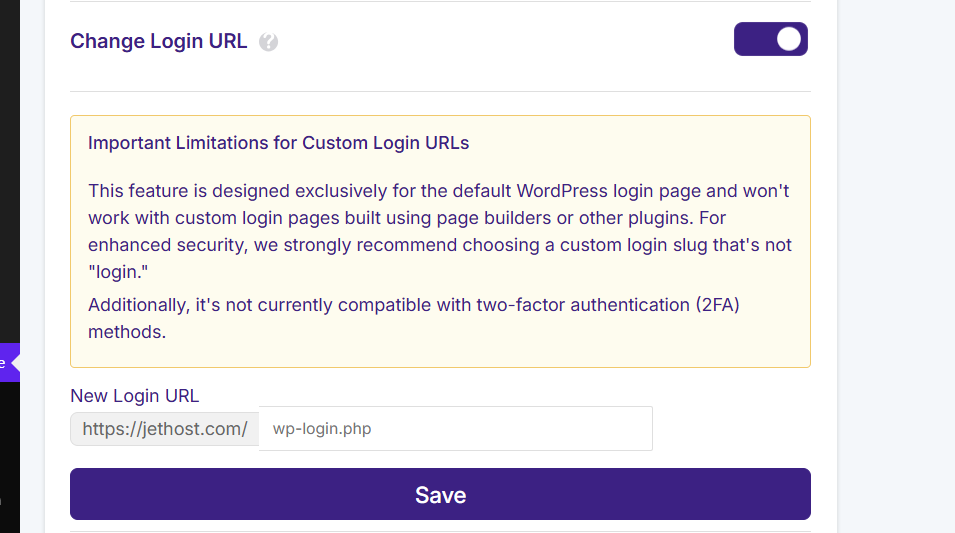
From then on, your login page lives at your custom address, and the default /wp-login.php and /wp-admin no longer show the login form to strangers. Bots hammering the standard address simply find nothing.
Choose a good path and save it
Pick something memorable but not obvious – avoid “login” or “admin”. Write the new URL down or bookmark it, because once the setting is on, the old login address won’t work. If your site uses full-page caching, clear the cache afterwards so the new page loads cleanly. This pairs perfectly with Limit Login Attempts: one hides the login page, the other blocks anyone who still finds it.
Why the default login URL is a risk
Every standard WordPress site keeps its login page at /wp-login.php, with /wp-admin redirecting to it. Because that address is identical on millions of sites, automated bots go straight to it and start guessing passwords. You can’t stop them knowing the address – but you can move the door. Changing the login URL to a custom path means those bots hit a “not found” page instead of your login form, so the attacks never reach it.
Security and performance together
Hiding the login page is a security measure with a performance side effect: the constant stream of bot requests to /wp-login.php can add real load on a busy or shared server, and removing it frees those resources for genuine visitors. For the strongest setup, pair a custom login URL with Limit Login Attempts – one hides the page, the other blocks anyone who still finds it. Just remember to bookmark your new address, because the old one will no longer work once the setting is on.
JetHost Experts Tip
Save the new login URL in your password manager the moment you set it. If you ever forget it and get locked out, contact us and we can restore access.
Need More Help?
Can’t reach your new login page? Reach out and our team will help.













