



How to Set Custom Login and Logout Redirects with JetHost Total Care
By default WordPress sends users to the dashboard after login. The Custom Login/Logout Redirects option in JetHost Total Care lets you choose where people go after they log in or out, on any JetHost WordPress hosting plan. This guide shows how.
Set your redirects
- In your WordPress dashboard, open JetHost Total Care → Admin Enhancements.
- Toggle on Custom Login/Logout Redirects.
- Enter the page to send users to after login, and the page after logout, then save.
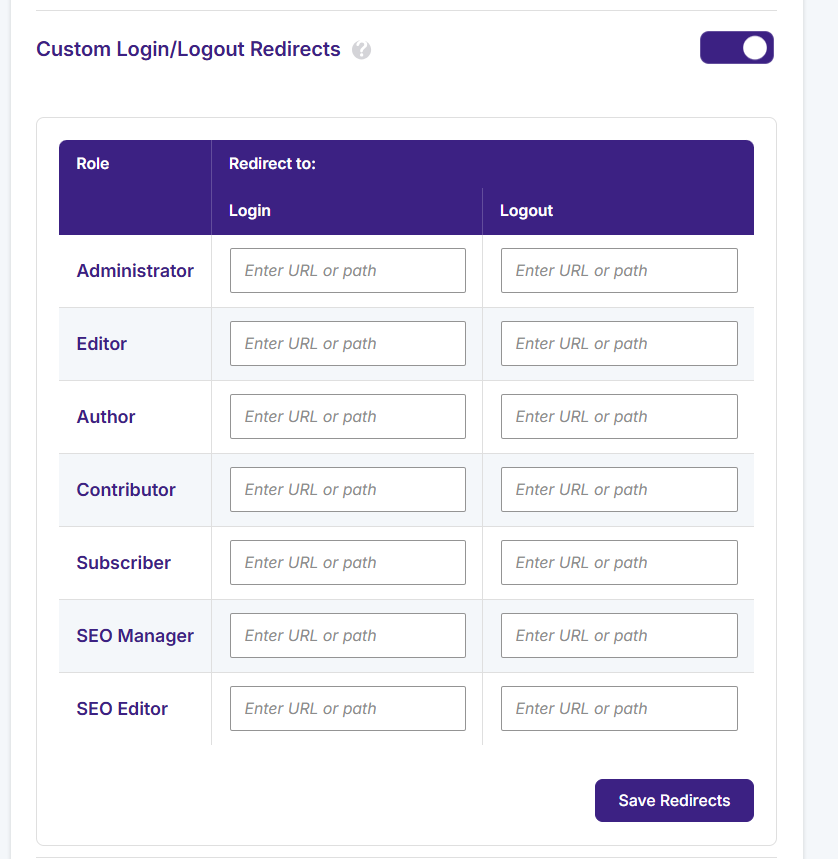
After that, logging in or out sends the user to the pages you chose instead of the default dashboard and login screen. This is handy for membership sites, shops, and client portals, where you’d rather land people on an account or welcome page than the WordPress admin.
Common setups and testing
A typical choice is to send members to their account page after login, and everyone to the homepage after logout. Make sure the pages you point to exist, and that logged-out visitors are allowed to see the logout destination. Test with a private browser window: log in and confirm you land on the right page, then log out and check. If a redirect doesn’t fire, the usual cause is a missing page or a typo in the URL. Combined with a branded login page, this gives members a smooth, on-brand experience.
Why control where users land
By default WordPress drops every user on the admin dashboard after login and on the login screen after logout. That’s fine for administrators, but it’s the wrong place for members, customers, or subscribers – they rarely need wp-admin, and landing there can be confusing. Custom redirects let you choose a more useful destination, such as an account page, a members-only area, or a welcome page, so people arrive exactly where they should.
A smoother experience for members and shops
This is especially valuable on membership sites and WooCommerce stores, where a smooth logged-in journey keeps people engaged and saves them clicks. A typical setup sends members to their account dashboard after login and everyone to the homepage after logout. Make sure the pages you point to exist and that logged-out visitors are allowed to see the logout destination, then test both in a private browser window. Combined with a branded login page, redirects make the whole sign-in and sign-out flow feel like a polished part of your site rather than generic WordPress.
JetHost Experts Tip
Running a membership or WooCommerce site? Redirect members straight to their account dashboard after login – it saves them a click and keeps them out of the WordPress admin.
Need More Help?
Redirects not working as expected? Reach out and our team will help.













