



How to Turn On Maintenance Mode with JetHost Total Care
Making big changes to a live site? Activate Under Maintenance Mode in JetHost Total Care shows visitors a friendly “we’ll be back” page while you work, so they don’t see a half-finished site. This guide shows how, on any JetHost WordPress hosting plan.
Turn on maintenance mode
- In your WordPress dashboard, open JetHost Total Care → Admin Enhancements.
- Toggle on Activate Under Maintenance Mode.
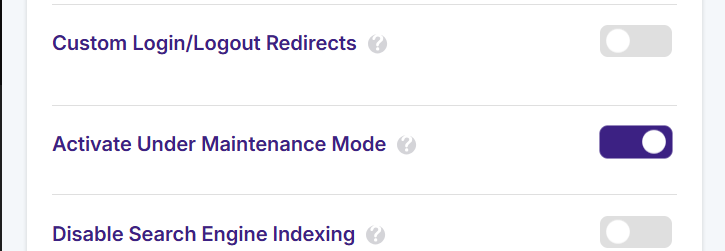
Visitors now see a maintenance notice instead of your pages, while you – logged in as an administrator – can still browse and edit the real site normally. That lets you update, test, and fix things without anyone landing on a broken page mid-work.
When to use it
Switch it on for anything that could briefly break the front end: a theme change, a major plugin update, or restructuring pages. Keep the window short and turn it off the moment you’re done so visitors see the finished result. For a brand-new site that isn’t ready at all, Password Protect the Website is often the better fit – use maintenance mode for short, planned work on an existing site.
Why maintenance mode matters
When you update a theme, run a major plugin update, or restructure pages on a live site, the front end can briefly look broken – half-styled pages, missing sections, or a PHP error. Anyone who visits at that moment sees your site at its worst, which hurts trust and can even be captured by a search engine crawler. Maintenance mode prevents that by showing visitors a tidy “we’ll be back” notice while you work, so they never land on a broken page.
Keep the window short
Because administrators still see the real site while logged in, you can update, test, and confirm everything works before switching the notice off – visitors only ever see the finished result. Keep the maintenance window as short as you can: a brief, planned notice is harmless, but leaving a site in maintenance mode for a long time can affect how search engines crawl it. For a brand-new site that isn’t ready at all, Password Protect the Website is the better fit; use maintenance mode for short, planned work on a site that’s already live.
JetHost Experts Tip
Doing planned maintenance? Turn this on first, make your changes, check the site while logged in, then switch it off – visitors only ever see a tidy notice, never a broken page.
Need More Help?
Maintenance page not showing, or showing to you by mistake? Reach out and our team will help.













