


Ask,
and your AI assistant just knows your hosting
JetHost MCP Server links the AI assistant you already use (Claude, ChatGPT, Cursor and others) to your hosting account. Ask a question the way you’d say it out loud, and it checks your services, invoices, domains, email, traffic and more. And can even publish your sites, always scoped to your account and only with your permission.

“Which of my domains renew next month, and what will they cost?”
how it works
Connect once, then just talk.
No new dashboard to learn and nothing to install on your account. You hook up the assistant you already use, approve what it may see, and start asking.
Pick your assistant
Works with the AI tools you already use: Claude, ChatGPT, Cursor, Lovable and more.
Log in & approve
You sign in at JetHost with your usual login and two-factor security, and approve exactly what the assistant may see.
Just ask
Talk to your assistant in plain language. It works out what to check and answers — no commands to learn.
what you can ask
Real things people ask it
These are written the way you’d actually say them. You don’t pick commands or learn any syntax: you ask, and your assistant works out the rest.
Never miss a renewal
A tidy list of what’s due, by date, with the price of each.
Reconcile a charge
A plain-English breakdown of any invoice and what it paid for.
Catch up on a ticket
A summary of every open ticket and its most recent reply.
One-glance health check
Your whole account — services, domains, bills and tickets — in one answer.
Diagnose a down site
It reads the error log and tells you, in plain words, what broke.
Find the noisy 404s
Your top broken links this month and where the clicks came from.
Investigate a slow day
Your usage day by day, with the unusual days called out.
See where visitors come from
A readable monthly recap of visits, pages, referrers and countries.
Name and host a new idea
Available domain ideas, prices, and which plan throws one in free.
Compare plans for me
A recommendation for your case, with the yearly price.
Verify DNS delegation
A clear yes/no on where your domain points, plus its expiry date.
Edit a DNS record
It shows your records and adds the one you need — after you confirm.
Check your WHOIS details
The contacts on record, so you can check they’re still current.
Manage a mailbox
Your mailboxes listed, and new ones created on request.
Ship a static site
Your site live from a Git repo, with confirmation of what’s deployed.
Roll back a bad deploy
Your deploy history, and a one-step rollback to a known-good version.
Deploy a private repo
Guided setup for private repos, then a clean deploy of your branch.
Launch a New Site
A ready-to-go WordPress site and a first-login link, without ever opening the control panel.
One-Sentence Maintenance
Every available update applied at once, plus a freshly cleared cache.
Make Changes Safely with Staging
A test copy, a preview of the changes, and publishing only after you confirm.
Back Up Before You Risk It
A fresh backup, a database export if you need one, and a way to roll back to the previous state.
Manage Your Team
A new user with the right role, and permissions you can change anytime.
Find and Install a Plugin
A well-suited plugin from the official directory, installed and activated in a single conversation.
Replace Old URLs
First a count of everything that will change, then the replacement, only after you confirm.
Quick Admin Access
A one-time, short-lived login link, with no password sharing.
Everything is set up in your client area.
You connect from Authorized AI assistants in your JetHost client area: it pre-fills these values for you. You log in as usual, with your existing two-factor security, and approve exactly what the assistant can access.
https://mcp.jethost.com/mcp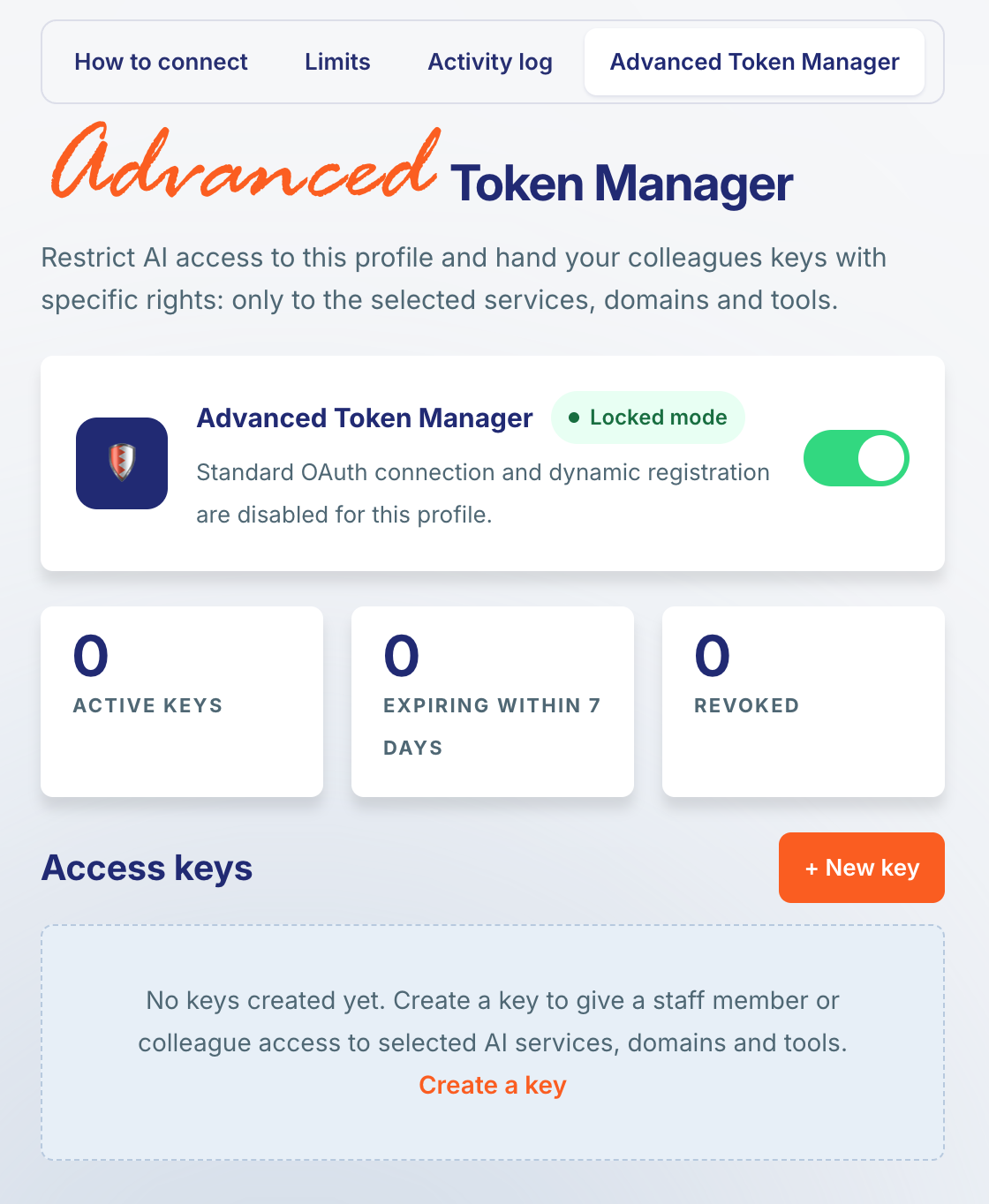
JetHost MCP v2: More Control Over AI Access
With the new Advanced Token Manager, you decide who can access what. Create separate access keys for employees, developers, or partners and define exactly what they’re allowed to do.
JetHost MCP v2 is designed for web agencies and studios, as well as customers working with developers or external specialists. Give each person only the access they need and adjust their permissions at any time.
Explore it in your Client Area: МCP Server – Advanced Token Manager.
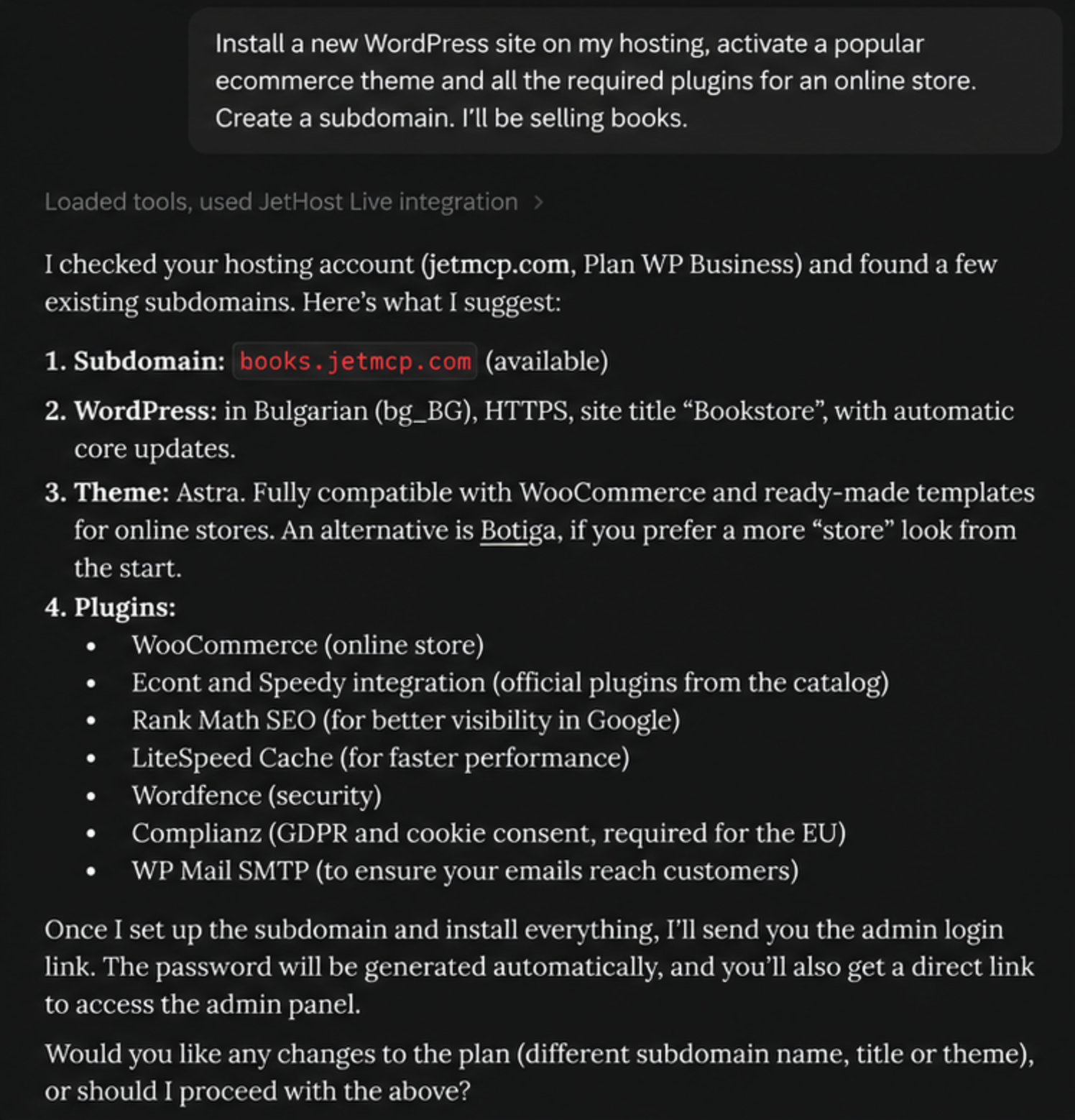
JetHost MCP now manages your WordPress site
JetHost MCP is now fully integrated with JetHost WP Manager. This means you can manage your WordPress sites directly through your AI assistant, using simple, everyday language.
Connect your AI assistant to your client area and manage your WordPress site easily and efficiently.
privacy & control
You stay in charge of every connection
Scoped to your account
Every request reads only data that belongs to you. The assistant can never reach another customer’s services, invoices or sites.
You approve what’s shared
A consent screen lists the exact permissions before anything is granted — inside your client area, with your existing login and 2FA.
Read-only by default
The large majority of things it can do only read. The few that change your account — like publishing a site or editing email — each need their own permission, and your assistant should confirm with you first.
Short-lived access
Access lasts just 15 minutes at a time and renews quietly in the background. Nothing is stored that you can’t take back.
Revoke any time
Manage or disconnect any assistant from Authorized AI assistants — revoking instantly cuts off its access.
JetHost on Your side:
Your FAQs Addressed
feedback
Tell us how it’s flying
JetHost MCP server is brand new and we’re shaping it around how people really use it. Tell us what you reached for, what was missing, and anything that tripped you up.
Visit our Help Center.
















