



Track Delivery
Wondering whether an email actually reached the recipient? Track Delivery shows the delivery route of your outgoing mail, so you can see if a message was delivered, delayed, failed, or blocked. This guide shows how to run and read a delivery report. Email comes with every JetHost web hosting plan.
Run a delivery report
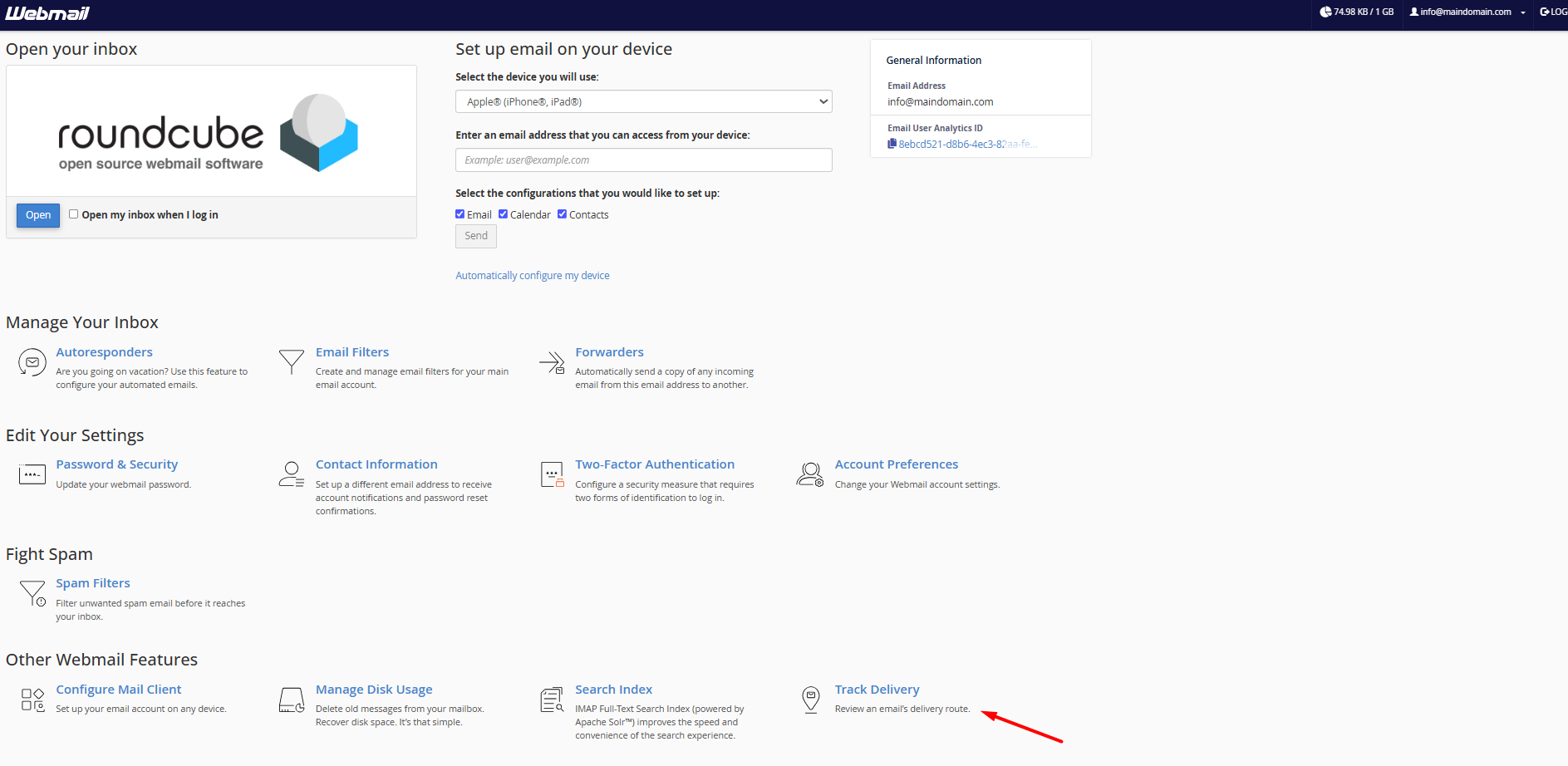
- Log in to your webmail and open Track Delivery.
- Optionally type a Recipient Email to narrow the results to one address, then click Run Report.
- Use Show All for everything, or Show Blocked & Failed to focus on problems.
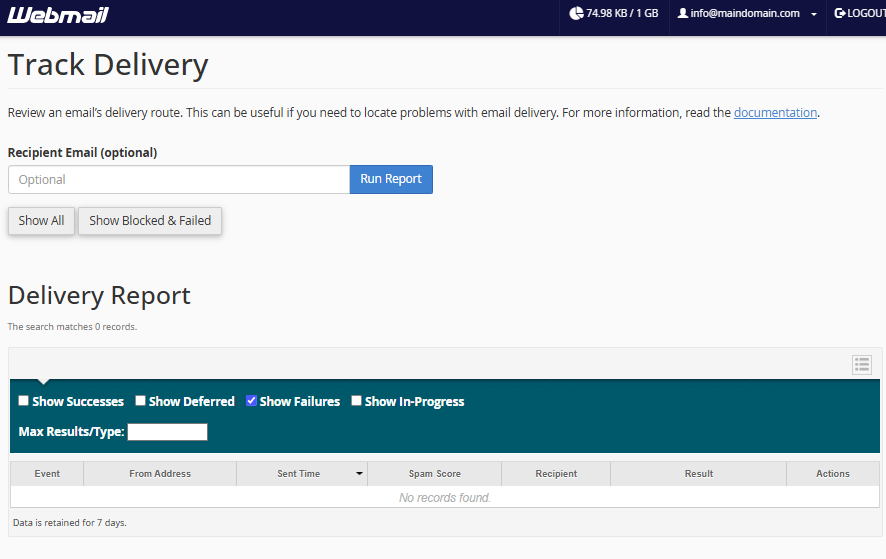
You can also tick Successes, Deferred, Failures, and In-Progress to filter by status.
Read the report
Each row shows the event, the from address, the sent time, a spam score, the recipient, and the result. The result is the key part:
- Success – the message was accepted by the recipient’s server.
- Deferred – delivery was temporarily delayed and will be retried.
- Failed / Blocked – the message was rejected; the row usually explains why.
Note that delivery data is only kept for a limited time, so check recent sends rather than older ones. The spam score column is also useful: a high score on your own outgoing mail is a hint that the message looked spammy to the receiving server, which can explain why it was rejected or landed in junk. Track Delivery is the quickest way to prove whether a “they never got my email” problem happened on the sending side or the recipient’s.
JetHost Experts Tip
If a message failed, read the result text before resending – it often names the exact reason, such as an invalid address or the recipient’s server rejecting it. Fixing that is faster than sending again and hoping.
Related: Email deliverability, How to reindex the email search index, Your webmail dashboard.
Need more help?
Not sure what a delivery result means? Open a ticket through Client Area → Support with the recipient and time, and our team will help you read it.













