



Your webmail dashboard: what you can manage
Your webmail dashboard is the home screen you see after logging in to your JetHost email. From here you read your mail and manage every setting for the mailbox. This guide walks through each section on the page, with links to step-by-step guides. Email is included with every JetHost web hosting plan.
Open your inbox
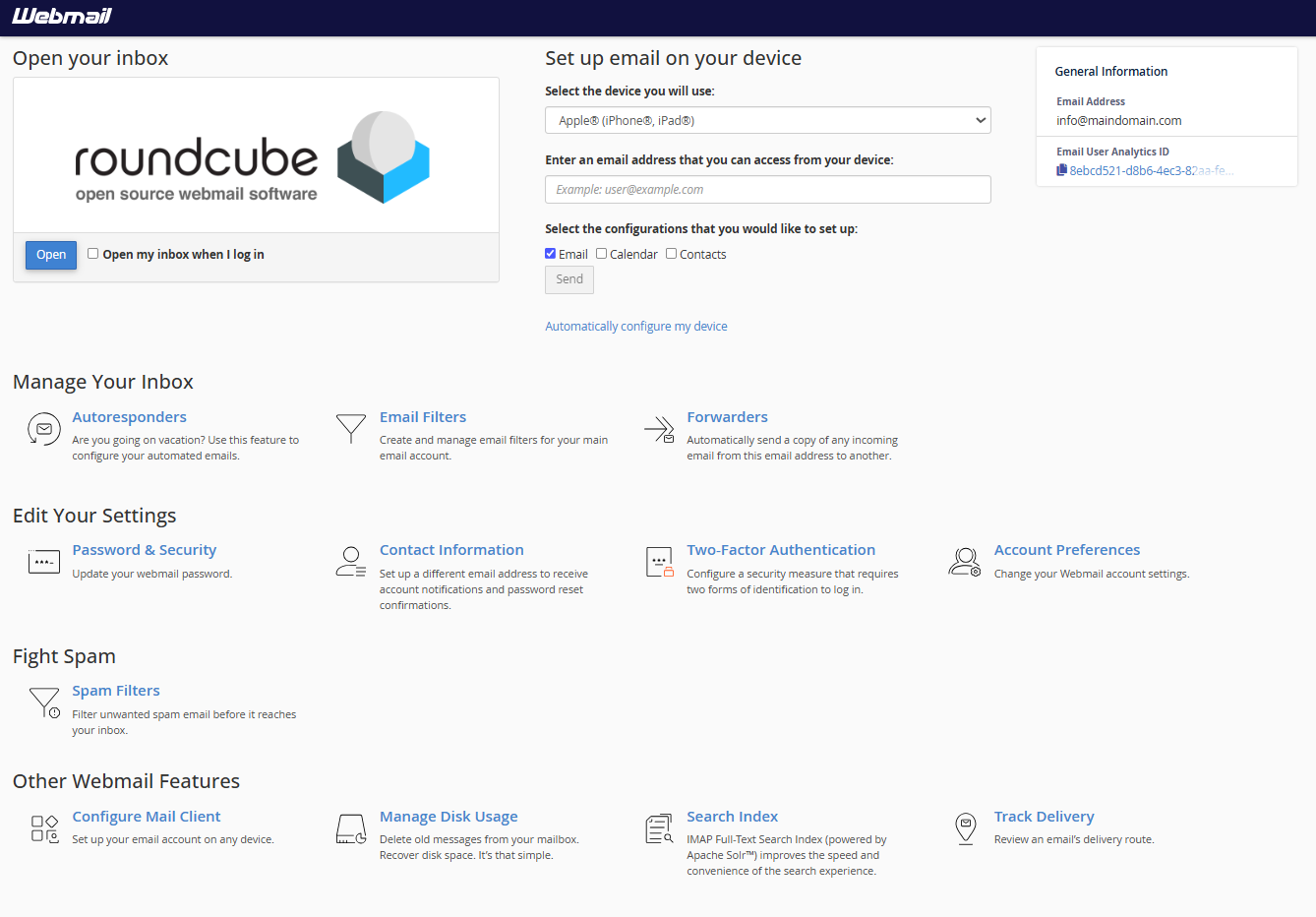
The main button opens Roundcube, where you actually read and send email. New to it? See how to access your webmail. Tick “Open my inbox when I log in” to skip this screen next time.
Set up email on your device
The middle panel helps you add this mailbox to a phone or desktop app. For the settings and steps, see how to set up email on your device.
Manage Your Inbox
- Autoresponders – automatic vacation replies.
- Email Filters – sort or delete incoming mail automatically.
- Forwarders – send a copy of your mail to another address.
Edit Your Settings
- Password & Security – change your mailbox password.
- Contact Information – a recovery email for notifications and password resets.
- Two-Factor Authentication – add a second login step.
- Account Preferences – finer webmail account options.
Fight Spam
Spam Filters keep unwanted mail out of your inbox. The filter runs automatically; here you can make it stricter or more lenient and manage your allow and block lists.
Other Webmail Features
- Configure Mail Client – the exact server settings for any device; see setting up email on your device.
- Manage Disk Usage – see how much space your mail uses and delete old messages to free it up.
- Search Index – an IMAP full-text index that makes searching your mail faster.
- Track Delivery – follow the route of a sent message to see if it was delivered.
JetHost Experts Tip
New to a mailbox? Do three things first: set a Contact Information address, turn on Two-Factor Authentication, and add the account to your phone. That covers recovery, security, and access in about five minutes.
Need more help?
Can’t find a setting on your webmail dashboard? Open a ticket through Client Area → Support and our team will point you to the right place.













