



Email Disk Usage
Mailbox getting full or bouncing new messages? The Email Disk Usage tool shows exactly where your space is going and lets you clear out old mail. This guide shows how to check usage and free up room. Email comes with every JetHost web hosting plan.
Check your email disk usage
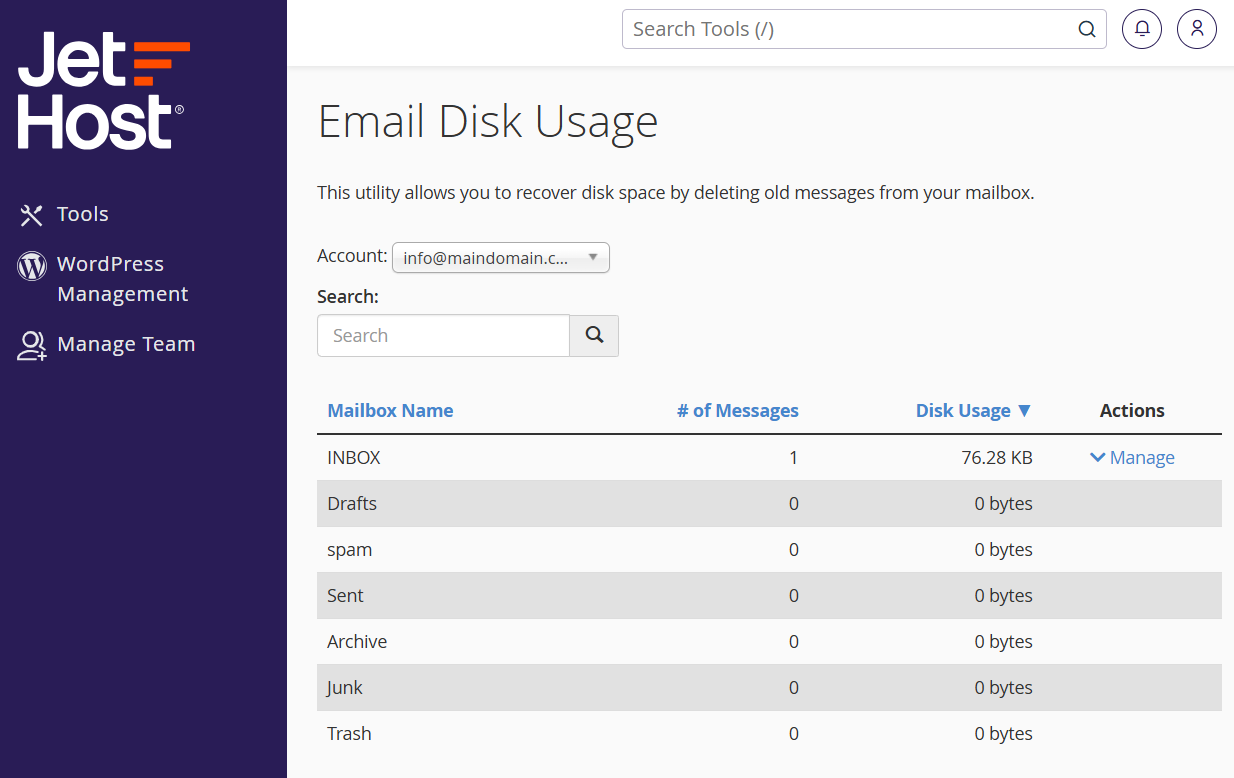
- In your hosting panel, open Email Disk Usage.
- Select the email account you want to review.
- Look at the breakdown by folder to see which ones – Inbox, Sent, Trash, or a big folder – are using the most space.
Free up space
Use the built-in query to find and remove old or oversized messages. For example, you can delete mail older than a chosen date, or messages above a certain size – often the ones with large attachments. Emptying the Trash and Junk/Spam folders usually reclaims space quickly too.
Deletions here are permanent, so double-check the criteria before you confirm. When in doubt, archive the mail to your computer first.
Stay ahead of a full mailbox
The best fix is to avoid the problem in the first place. If a mailbox fills up often, raise its storage quota, or switch that account from POP3 to IMAP so old mail is managed on the server rather than piling up. Emptying Trash and Spam on a regular schedule helps too. For shared inboxes that receive large attachments daily, a quick monthly review here keeps things comfortable and stops mail from bouncing when you least expect it.
JetHost Experts Tip
The biggest space hogs are almost always large attachments in Sent and old Trash. Clearing those two first usually frees plenty of room without touching mail you actually want to keep.
Related: How to increase my mailbox quota, Set up email on your device, Your webmail dashboard.
Need more help?
Mailbox full and rejecting mail? Open a ticket through Client Area → Support and our team will help you clear space or raise the limit.













