



Email SPAM filters
Spam filtering on JetHost is a server-side feature that is always running – there is nothing to switch on or install. What you can control is how strict it is, and which senders it always trusts or blocks. This guide explains how it works and how to tune it. Spam filtering comes with every JetHost web hosting plan.
How spam filtering works
Every incoming message is scored by the server’s spam engine. The more spam-like signals it finds, the higher the score. When a message’s score passes the threshold, it is treated as spam – tagged and separated from your normal mail. You do not enable or disable this; it simply runs for every mailbox.
Make it more or less restrictive
The one setting that changes behaviour is the spam threshold score, found under Spam Filters in cPanel or from your webmail:
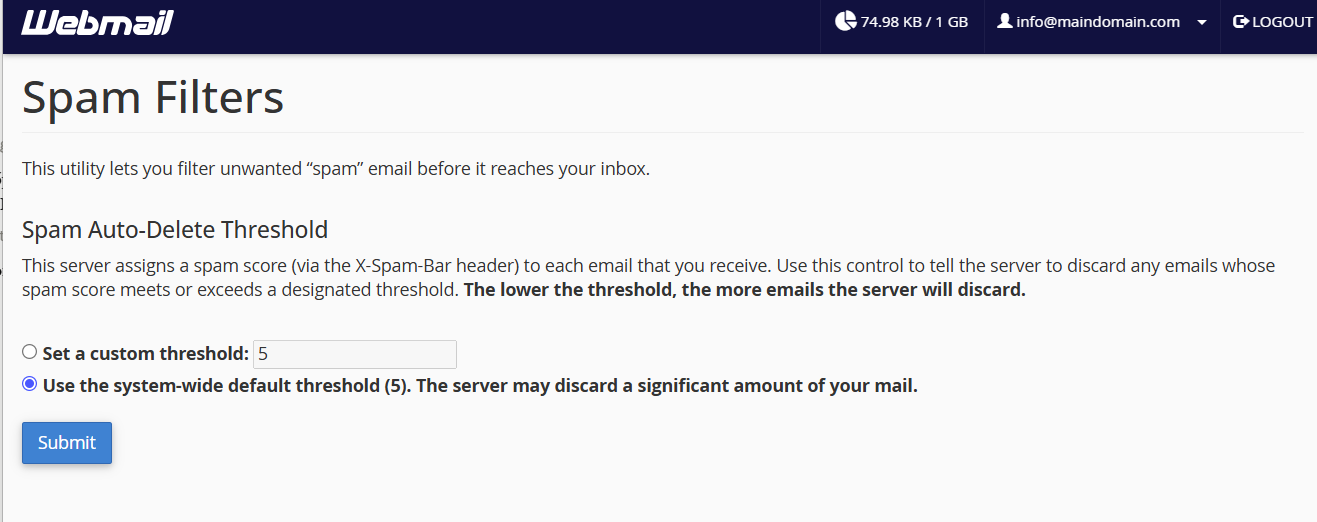
- Lower the score to make the filter more restrictive – it catches more spam, but may occasionally flag a real message.
- Raise the score to make it more lenient – fewer false positives, but a little more spam gets through.
The default is well balanced, so adjust it in small steps and watch the result for a few days.
Whitelist and blacklist senders
On the same page you can override the score for specific senders:
- Whitelist (allow): mail from these addresses or domains is always let through, even if it scores high.
- Blacklist (block): mail from these is always treated as spam, whatever its score.
You can add a whole domain as well as a single address – useful for trusting everyone at a company you work with, or blocking a domain that keeps sending junk.
The Spam folder
Spam is kept in a Spam folder, which is a normal IMAP folder. That means it syncs across every device connected to the mailbox. If you don’t see it in webmail or your mail app, you may just need to subscribe to it – see how to manage and subscribe to folders. Check it occasionally in case a genuine email was caught, and move anything real back to your inbox.
JetHost Experts Tip
If one trusted sender keeps landing in spam, don’t lower the whole threshold – just add them to the whitelist. That fixes the one sender without letting more junk through for everyone else you receive mail from.
Related: How to create email filters, Global email filters, Your webmail dashboard.
Need more help?
Getting too much spam, or a real sender that keeps being flagged? Open a ticket through Client Area → Support Tickets and our team will take a look.













