



Global email filters
Global email filters apply to every mailbox on your domain at once, not just one account. They are perfect for domain-wide rules – blocking a persistent spammer or routing certain mail for everyone. This guide shows how to use them. Email is included with every JetHost web hosting plan.
Global vs. account filters
A normal email filter affects only one mailbox. A global filter affects all of them on the domain. So use a global filter for something that should apply to everyone, and a per-account filter for personal sorting.
Create a global filter
- In your hosting panel, open Global Email Filters.
- Click Create a New Filter and name it.
- Set the condition – for example, From contains an address, or Subject contains a word.
- Choose the action – discard, redirect, deliver to a folder, and so on.
- Click Save.
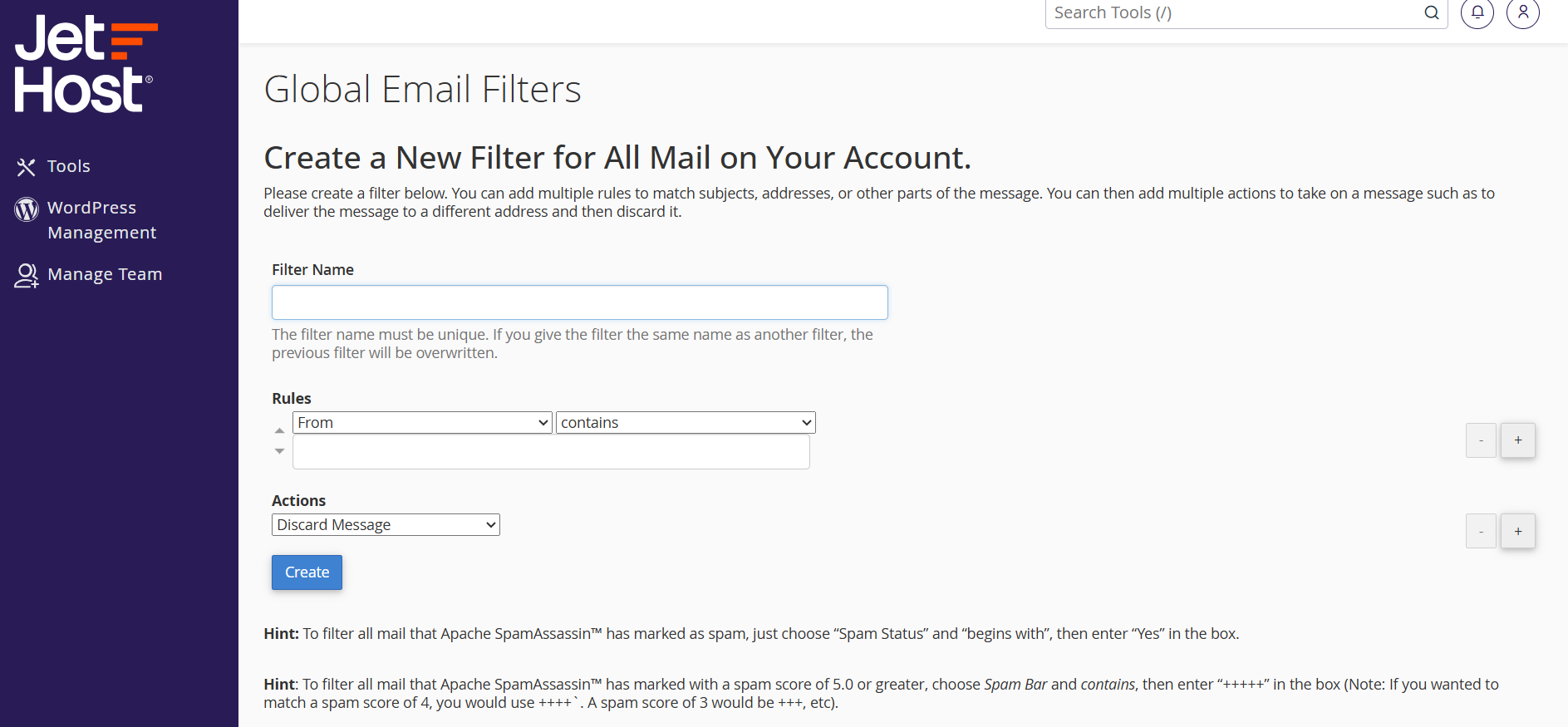
The rule now runs on incoming mail for every address on the domain. You can edit, reorder, or delete global filters from the same page.
Filter order matters
Filters run from top to bottom, and the first matching rule usually decides what happens. So put your most specific rules near the top and broad catch-all rules lower down. If a message seems to vanish or ignore a rule, an earlier filter has probably already acted on it. Test a new rule with a harmless action first, such as adding a header or delivering to a folder, and switch it to discard only once you are sure it matches exactly what you intend.
Good uses for global filters
- Block a domain that spams every address you have.
- Discard messages containing a phrase you never want delivered.
- Apply a company-wide policy without editing each mailbox by hand.
JetHost Experts Tip
Be extra careful with “discard” on a global filter – it applies to every mailbox, so one broad rule can silently drop real mail for the whole company. Test with “deliver to a folder” first.
Related: Email spam filters, How to set up an email forwarder, Your webmail dashboard.
Need more help?
Not sure whether a global or per-account filter fits? Open a ticket through Client Area → Support and our team will advise.













