



Enable Two-Factor Authentication for Webmail
Adding two-factor authentication (2FA) to your webmail means a stolen password alone is not enough to get in. Along with your password, login also needs a one-time code from your phone. Here is how to turn it on from your JetHost webmail. Email is included with every JetHost web hosting plan.
What you need
You will need an authenticator app on your phone, such as Google Authenticator, Microsoft Authenticator, or Authy. These generate a fresh six-digit code every 30 seconds.
Enable two-factor authentication
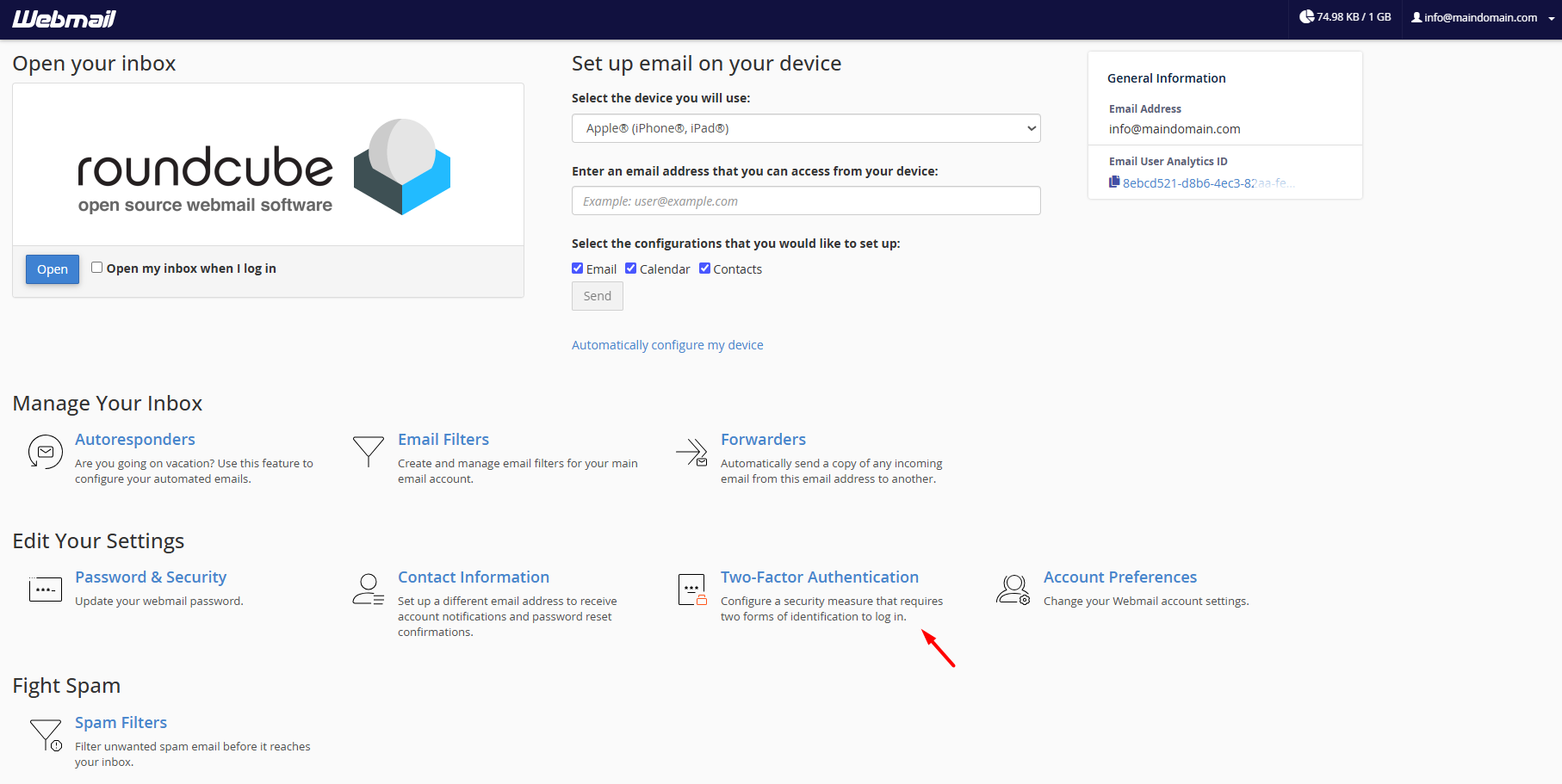
- Log in to your webmail and open Two-Factor Authentication.
- Click Set Up Two-Factor Authentication. A QR code appears.
- In your authenticator app, scan the QR code (or type in the shown key).
- Enter the six-digit code from the app to confirm, then click Configure.
From now on, each login asks for your password and a current code from the app. Even if someone learns your password, they cannot get in without your phone, which stops the vast majority of account break-ins. The code changes every 30 seconds, so there is nothing extra to remember – just open the app when you log in.
Don’t get locked out
Keep your phone and authenticator app safe, and note any backup or recovery codes you are given during setup. If you change phones, move the authenticator entry across first, or disable 2FA before wiping the old device.
JetHost Experts Tip
Use an authenticator app rather than SMS codes where you can. App-based codes work offline and are not vulnerable to SIM-swap attacks, so they are the safer choice for protecting your email.
Related: How to change your email password, Set a contact email for your mailbox, Your webmail dashboard.
Need more help?
Locked out after enabling 2FA? Open a ticket through Client Area → Support Tickets and our team will help you recover access.













