



How to set a Contact email for your mailbox
Setting a contact email for your mailbox gives you a safe way to receive account notifications and password-reset messages – sent to a different address you can always access. This guide shows how to set it from your JetHost webmail. Email comes with every JetHost web hosting plan.
Set your contact email
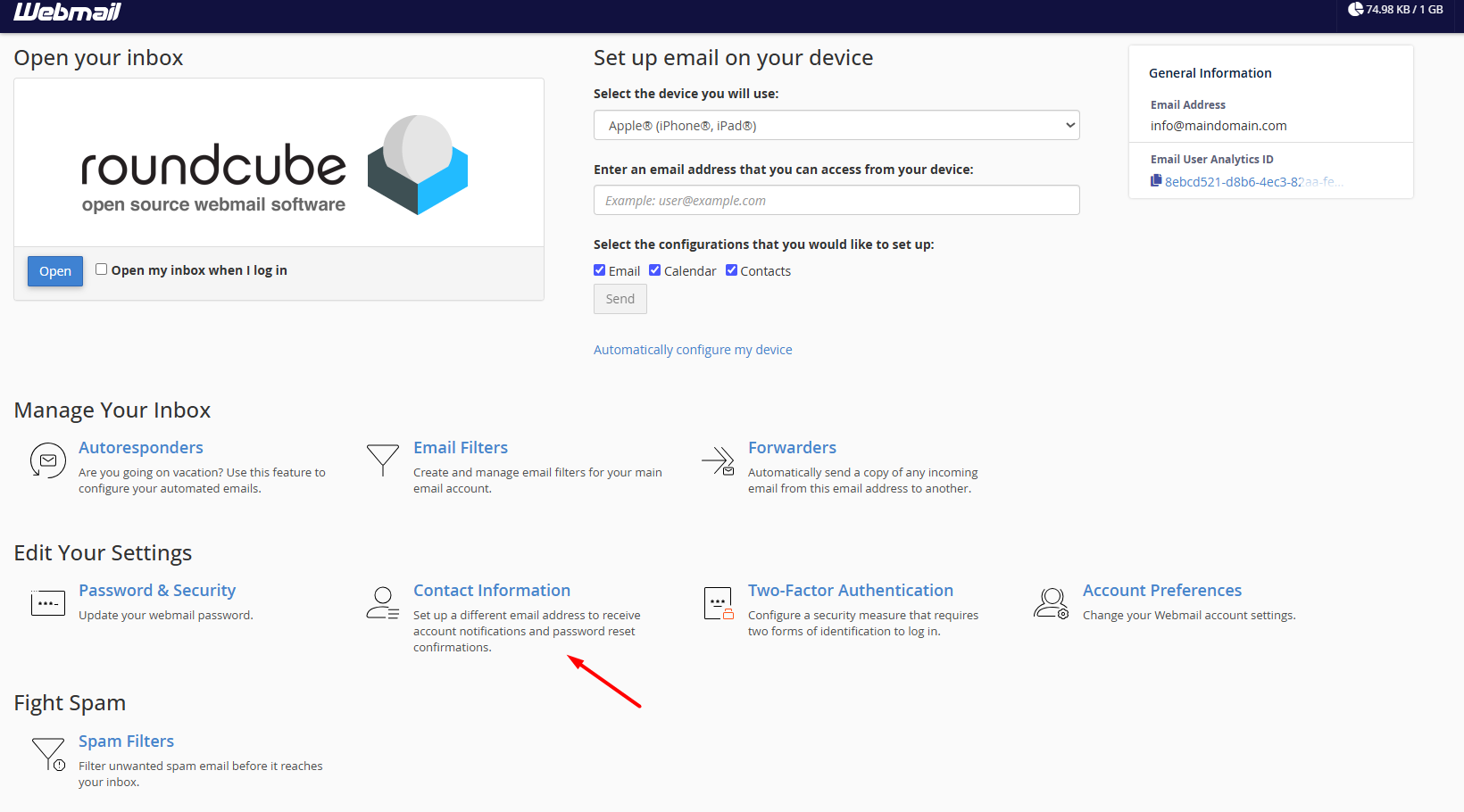
- Log in to your webmail and open Contact Information.
- Enter a contact email address that is different from this mailbox – for example a personal Gmail or Outlook account.
- Choose which notifications you want to receive there, then click Save.
Why it matters
If you ever lose access to your mailbox – a forgotten password, for instance – reset and alert messages go to this contact address instead. Because it is separate from the account itself, you can still receive them even when you cannot log in.
It is also where the account can warn you about important events, such as your mailbox nearing its storage limit or unusual login activity. Setting it once takes a minute and can save you a lot of trouble later, so it is well worth doing as soon as you create a new mailbox. Keep the contact address up to date if you ever change your personal email.
JetHost Experts Tip
Always use a contact address on a different provider – not another mailbox on the same domain. If the whole account has a problem, an outside address is the one that will still reach you.
Related: How to change your email password, Enable two-factor authentication for webmail, Your webmail dashboard.
Need more help?
Not receiving notifications? Open a ticket through Client Area → Support Tickets and our team will check your contact settings.













