



How to change your Email password
Keeping your mailbox secure starts with a strong password. You can change your email password in three places, depending on where it’s easiest for you: your JetHost Client Area, cPanel, or webmail. This guide covers all three. Every JetHost web hosting plan includes email.
From your Client Area
- Log in to your JetHost Client Area.
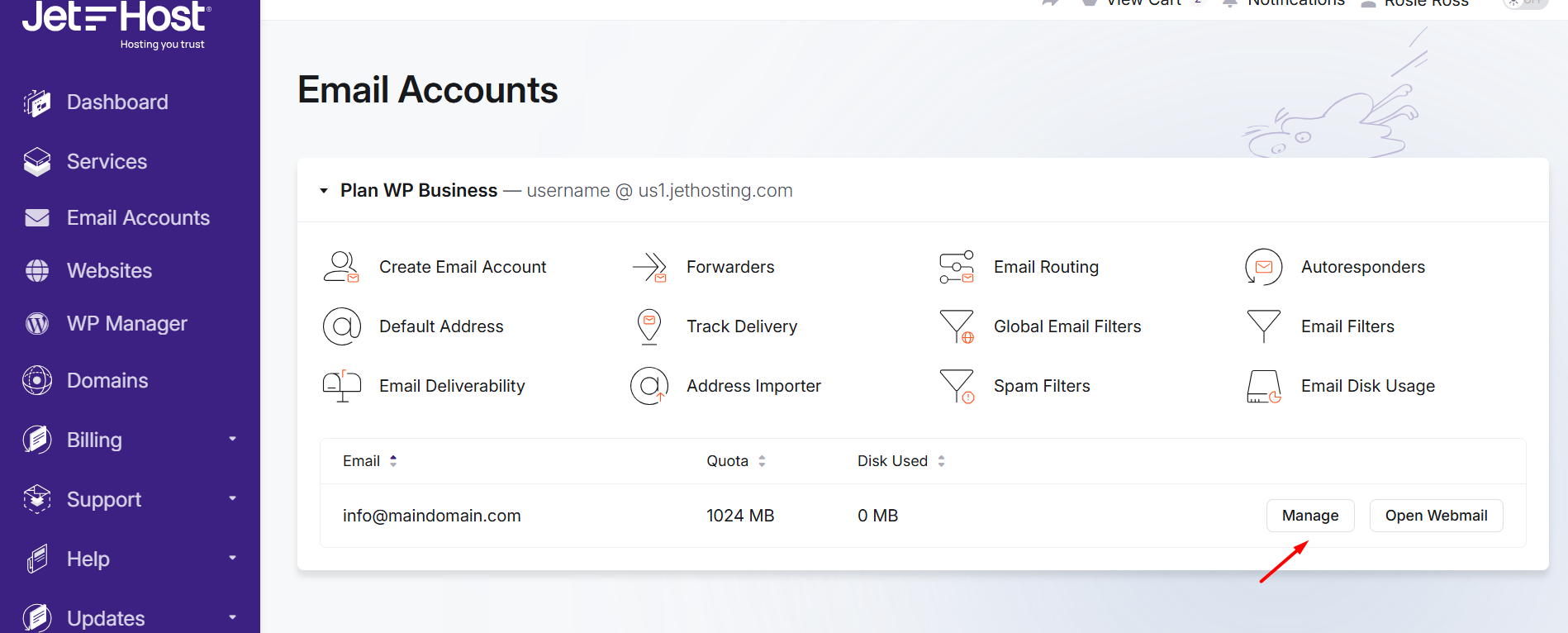
- Open Email Accounts and find the address you want.
- Click Manage and you’ll be redirected to cPanel, where you can change the password.
From cPanel
- Log in to cPanel and open Email Accounts.
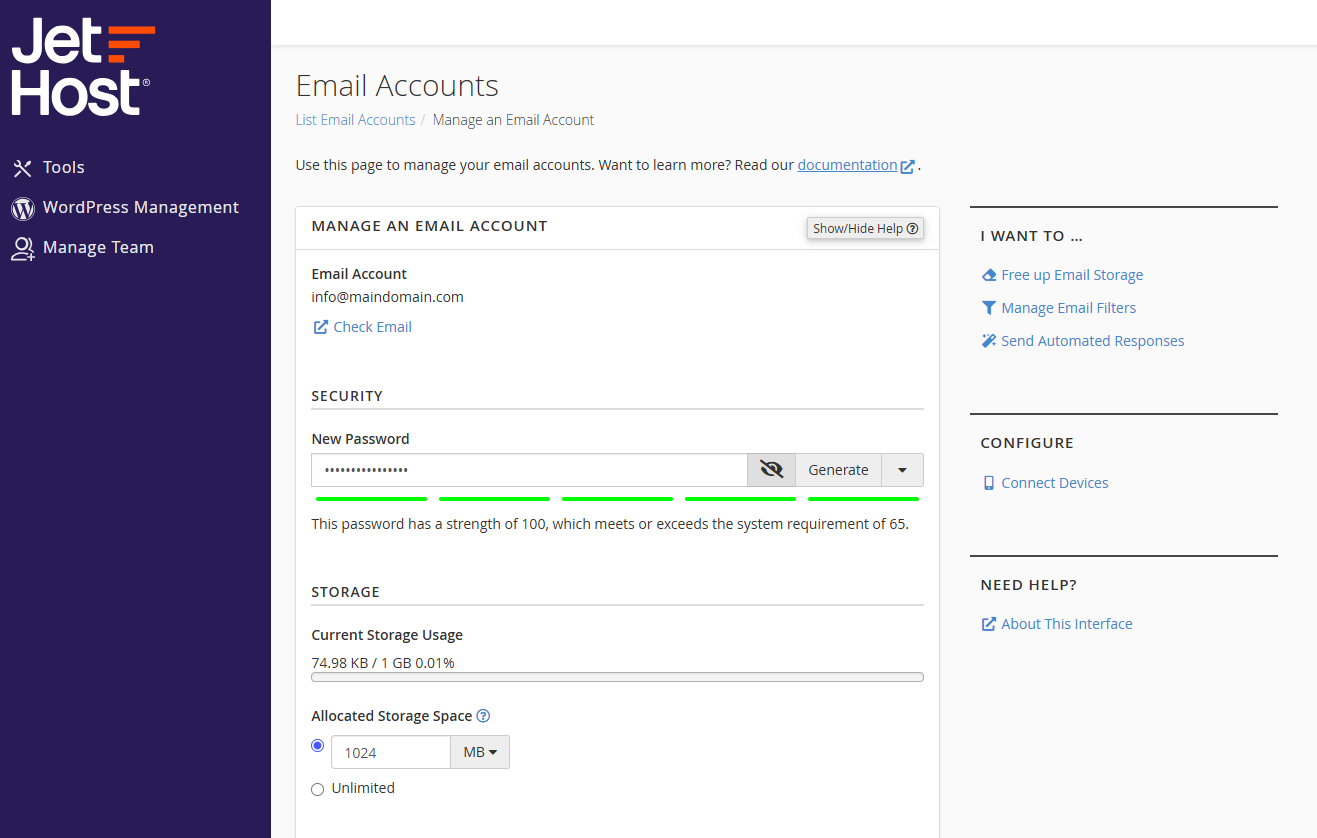
- Next to the address, click Manage.
- Under Security, enter a new password (or use the generator) and click Update Email Settings.
From webmail
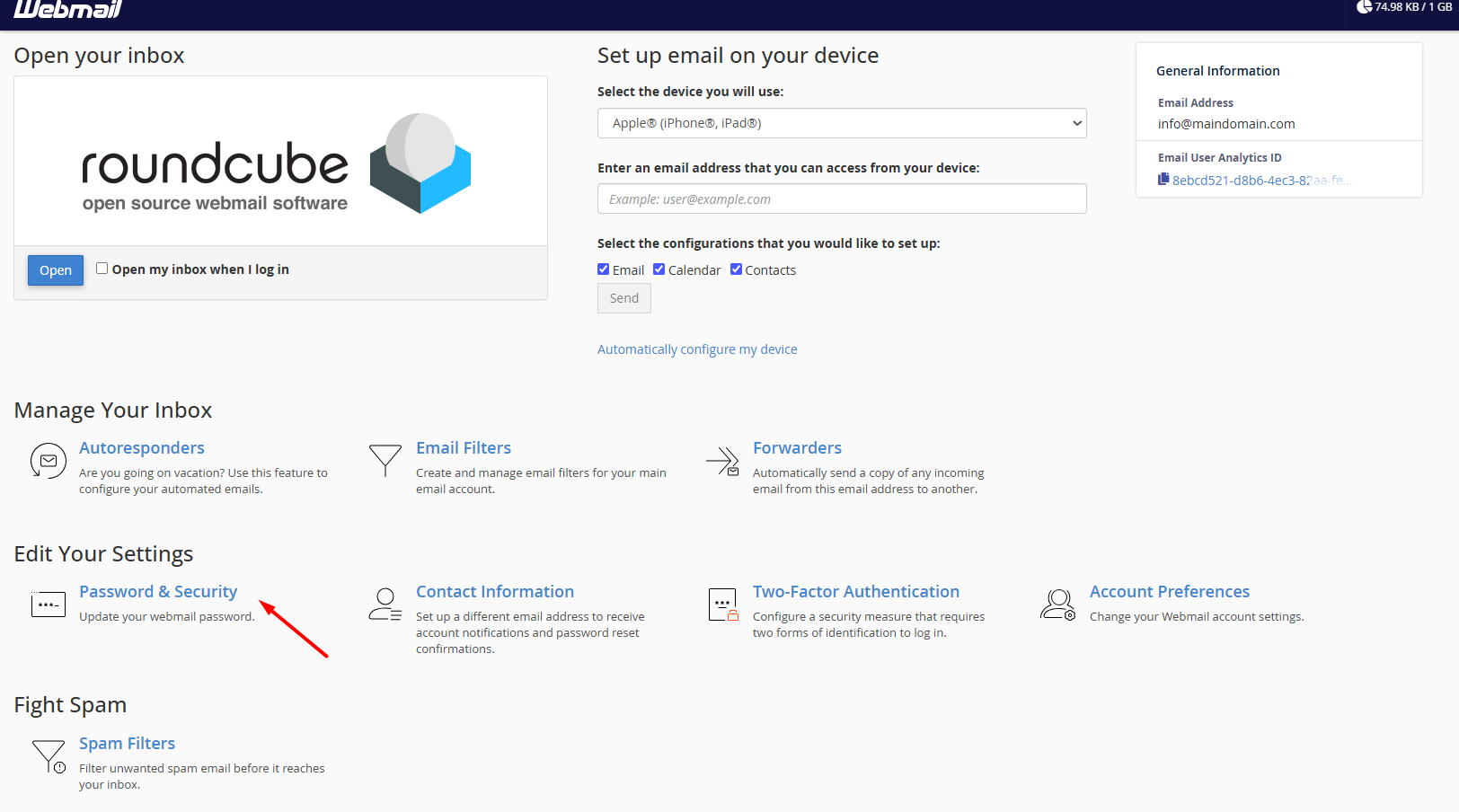
- Log in to your webmail.
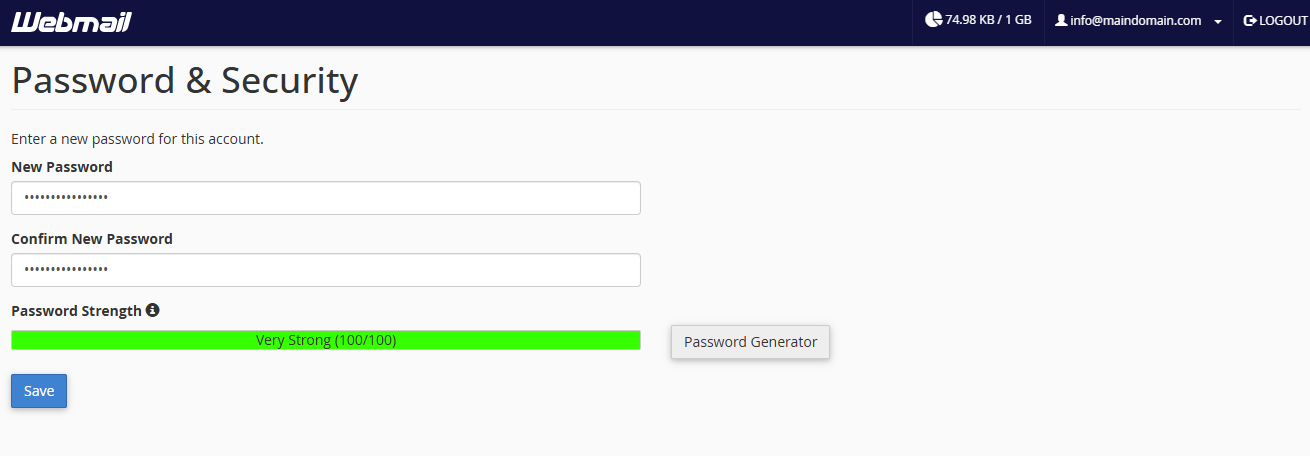
- Open Password & Security.
- Enter the new password twice and click Save.
All three change the same mailbox password, so use whichever you already have open. In each case, the change is instant. However, if you read this mailbox in a phone or desktop app, remember to update the saved password there too – otherwise it will stop connecting and keep prompting you.
Choose a strong password
Whichever method you use, make the new password long and unique. First, aim for at least 12 characters, mixing upper and lower case, numbers, and symbols. Second, don’t reuse it on other sites. Finally, a password manager makes this effortless and remembers it for you, so you can use a different strong password for every account.
If you’ve forgotten the password
If you cannot log in to webmail at all, don’t worry. Instead, use the Client Area or cPanel method above to set a new password – you do not need the old one. Importantly, this only changes the login; your existing emails are untouched.
JetHost Experts Tip
Note that the mailbox password is separate from your Client Area login password. Changing one does not change the other – and if you suspect a breach, change the mailbox password first, then check your Forwarders and Filters for anything you did not set.
Related: Enable two-factor authentication for webmail, Set a contact email for your mailbox, Your webmail dashboard.
Need more help?
Locked out or worried about security? Open a ticket through Client Area → Support Tickets and our team will help you regain access.













