



How to set up an Email forwarder
An email forwarder automatically sends a copy of your incoming mail to another address – handy for routing mail to a team or reading several addresses in one inbox. You can set this up in two places: your hosting panel (cPanel) or Roundcube. This guide covers both. Email is included with every JetHost web hosting plan.
Option 1: Set up a forwarder in cPanel
This is the standard way, and it forwards all mail for an address.
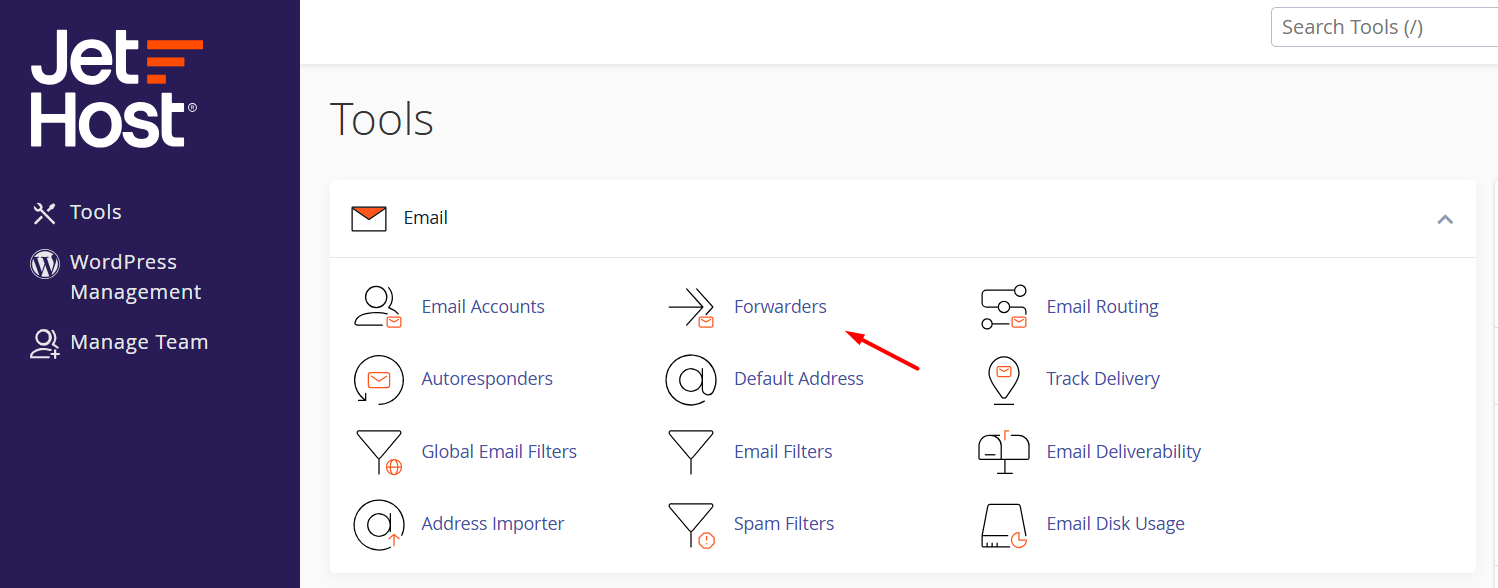
- In your hosting panel, open Forwarders (under the Email section).
- Click Add Forwarder.
- Enter the address whose mail you want to forward, and the destination address it should go to.
- Click Add Forwarder to save.
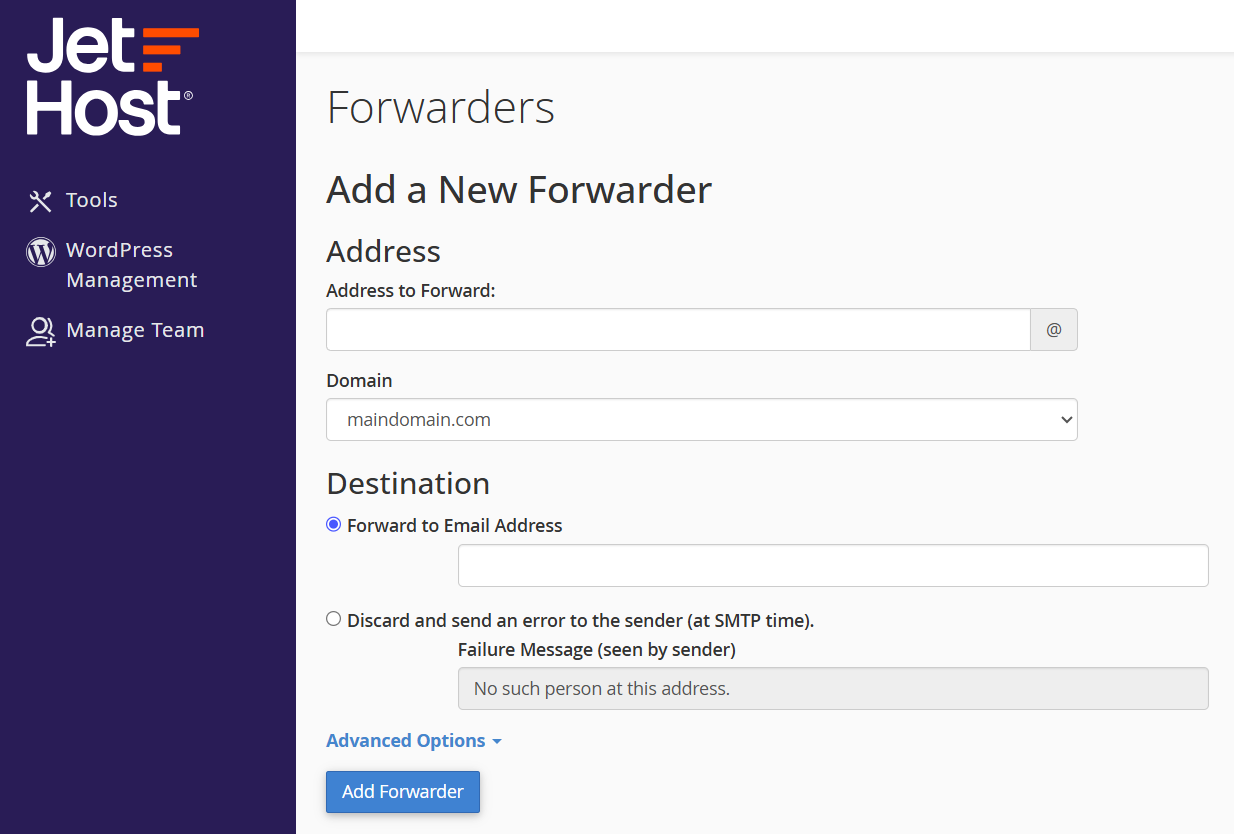
By default the mail is still delivered to the original mailbox too, so nothing is lost. To forward to more than one place, add a separate forwarder for each destination.
Option 2: Forward from Roundcube (via a filter)
Roundcube has no separate “forwarders” screen, but you can forward mail with a filter – useful when you want to forward only some messages, or without opening the panel.
- Log in to your webmail and open Settings → Filters.
- Create a new filter. To forward everything, set the rule to match all messages; to forward only some, add a condition such as From contains.
- For the action, choose Redirect message to and enter the destination address. Tick keep a copy if you also want it in this mailbox.
- Click Save.
Remove forwarding
To stop it, delete the forwarder under Forwarders in the panel, or delete the filter under Settings → Filters in Roundcube – whichever one you used. Mail then simply stays in the original mailbox.
JetHost Experts Tip
Use the cPanel forwarder to forward everything for an address, and a Roundcube filter when you only want to forward certain messages. Avoid setting up both for the same mail, or a message can be sent on twice.
Related: Email routing, Default address (catch-all), How to create email filters.
Need more help?
Forwarded mail not arriving? It can land in the destination’s spam folder – check there first. Still stuck? Open a ticket through Client Area → Support Tickets.













