



How to set up an Email Autoresponder
Going on holiday or stepping away from your inbox? An email autoresponder automatically replies to anyone who writes to you, so they know when to expect an answer. This guide shows how to set one up from your JetHost webmail. Email is included with every JetHost web hosting plan.
Create an autoresponder
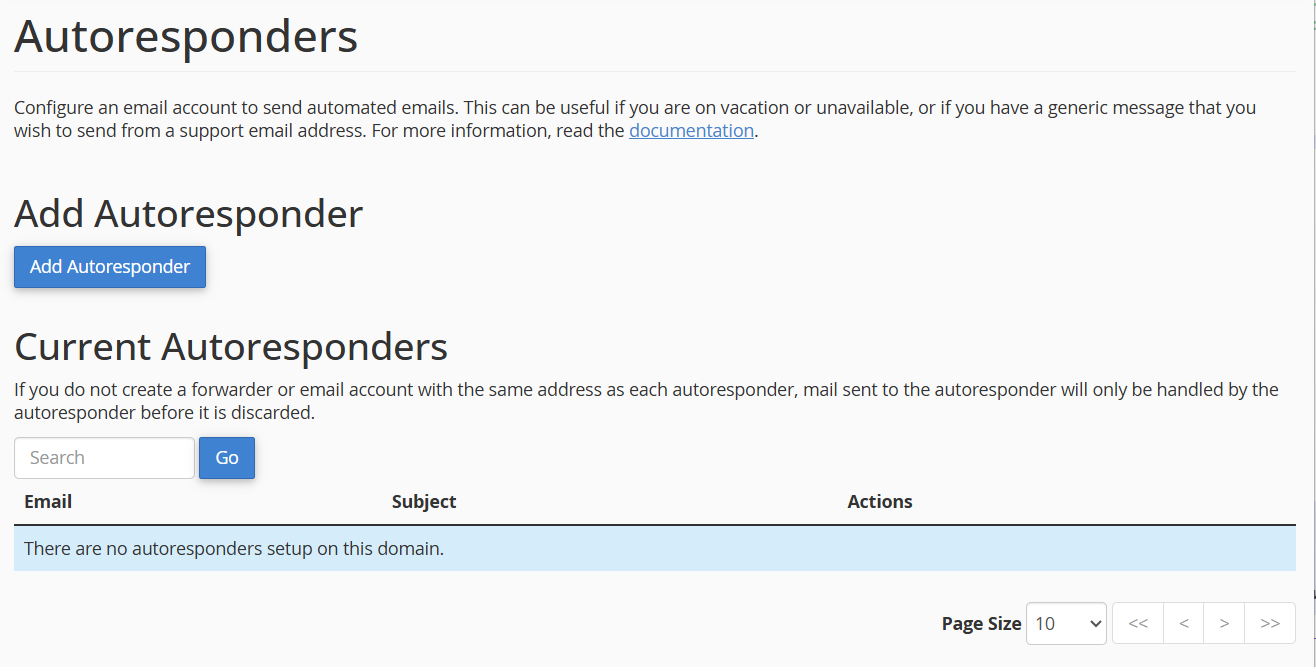
- Log in to your webmail and open Autoresponders.
- Click Add Autoresponder.
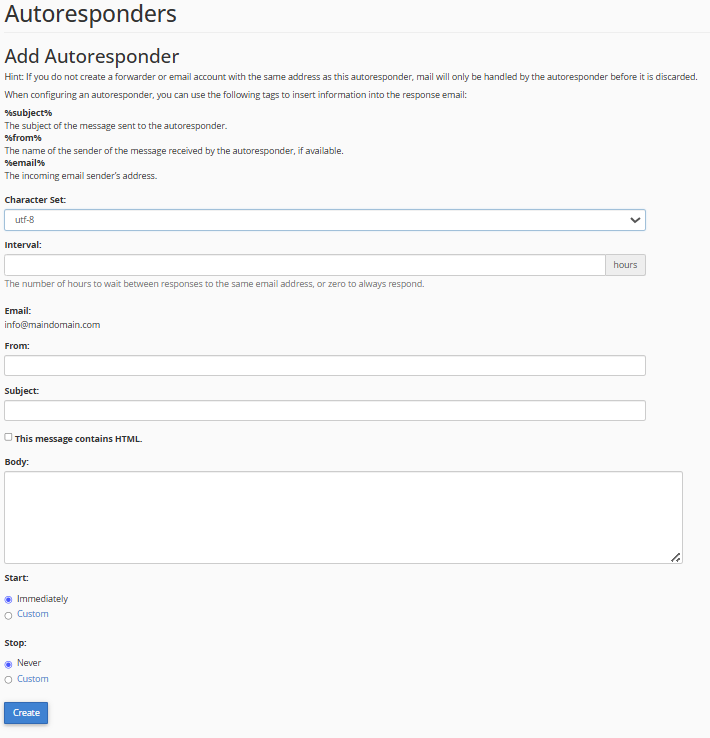
- Set the interval – how many hours to wait before replying again to the same sender.
- Fill in the From name, the Subject, and the message body.
- Choose a start and stop time, or set it to run immediately with no end date.
- Click Create.
From now on, anyone who emails you gets your reply automatically until the stop time you set. Each sender receives the reply once per interval, not on every message, so they are not flooded with responses. You can also run more than one autoresponder on different mailboxes if you manage several addresses.
Write a good out-of-office message
Keep it short and useful. A good reply says that you are away, when you will be back, and who to contact for anything urgent. For example: “Thank you for your email. I’m away until 12 March and will reply when I return. For urgent matters, please contact colleague@yourdomain.com.”
Turn it off
When you are back, return to Autoresponders, find the entry, and click Delete – or simply let the stop time you set end it on its own.
JetHost Experts Tip
Set the interval to at least a few hours. With a very short interval, a back-and-forth with another autoresponder can create a loop of replies. A 4–24 hour interval avoids that while still covering everyone who writes.
Related: Your webmail dashboard, How to create email filters, How to set up an email forwarder.
Need more help?
Autoresponder not sending? Open a ticket through Client Area → Support Tickets and our team will check it for you.













