



Import and export contacts in Roundcube
Moving to a new mailbox or backing up your address book? You can import and export contacts in Roundcube in just a few clicks, using standard files that work with most email apps. Email comes with every JetHost web hosting plan. Here’s how.
Open your contacts
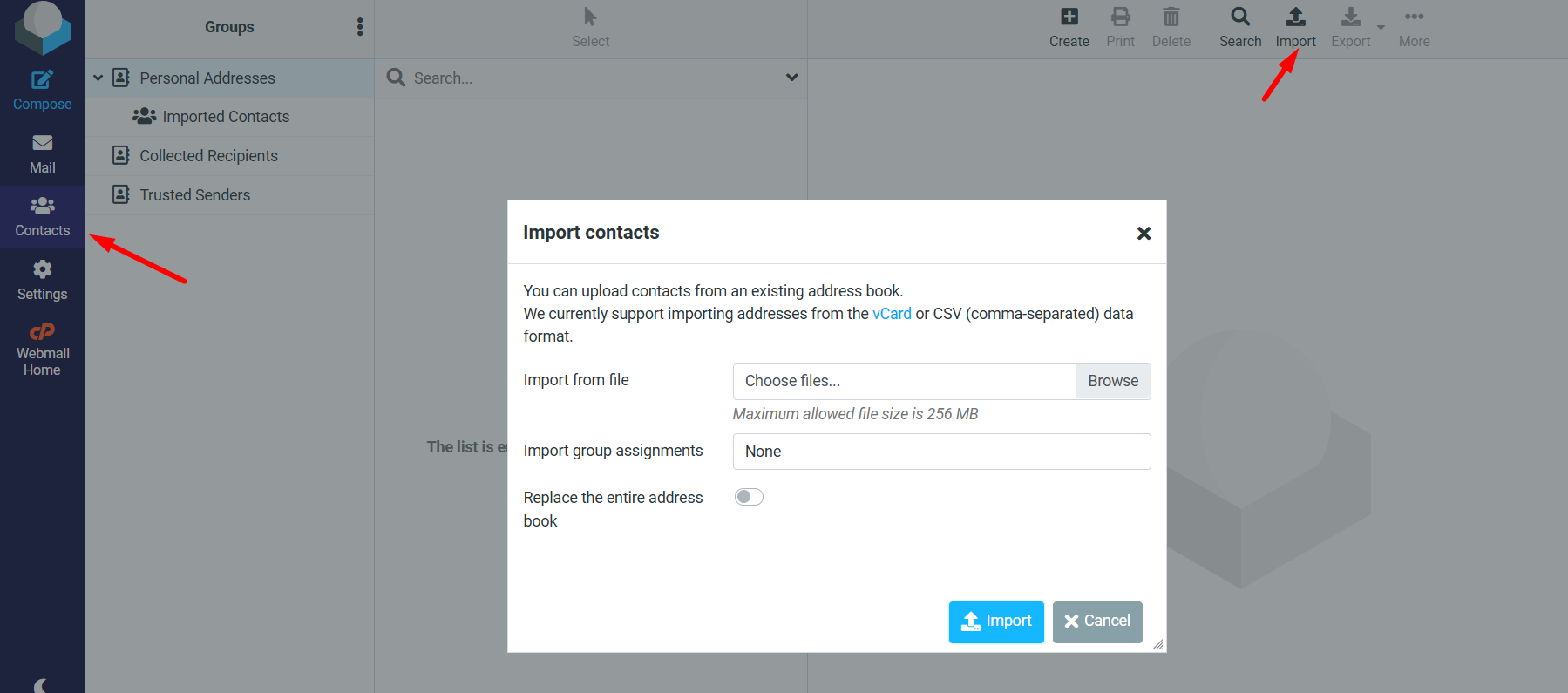
Log in to your webmail and click Contacts in the top menu. Import and export both live here.
Import contacts
- In Contacts, click the Import icon at the top.
- Choose your file. Roundcube accepts vCard (.vcf) and CSV files, which you can export from Gmail, Outlook, and most other services.
- Decide whether to add to your existing contacts or replace them, then click Import.
When it finishes, Roundcube tells you how many contacts were added. If you import the same file twice, you may get duplicates, so import each file only once. You can also sort contacts into groups afterwards, which makes it easy to email a whole team or client list at once.
Export contacts
- In Contacts, select a group or all contacts.
- Click the Export icon.
- Roundcube downloads a vCard (.vcf) file you can import into another mailbox or keep as a backup.
Coming from another service? Export a file there first, then import it here. In Gmail, go to Google Contacts → Export and choose vCard or CSV. In Outlook.com, open People → Manage → Export contacts to get a CSV. Both files import straight into Roundcube using the steps above.
JetHost Experts Tip
Exporting a vCard is a quick, free way to back up your address book. Do it before any big change – switching devices, changing mailboxes, or cleaning up contacts – so you always have a copy to restore.
Related: Your webmail dashboard, Personal information in Roundcube, Folders in Roundcube.
Need more help?
Import not working, or contacts missing fields? Open a ticket through Client Area → Support Tickets and our team will help.













