



Personal information in Roundcube
Your identity in Roundcube is the name and email that appear when you send a message. Keeping it correct means recipients see the right sender and reply to the right address. This guide shows how to update your personal information in Roundcube. Every JetHost web hosting plan includes email.
Open your identity settings
- Log in to your webmail.
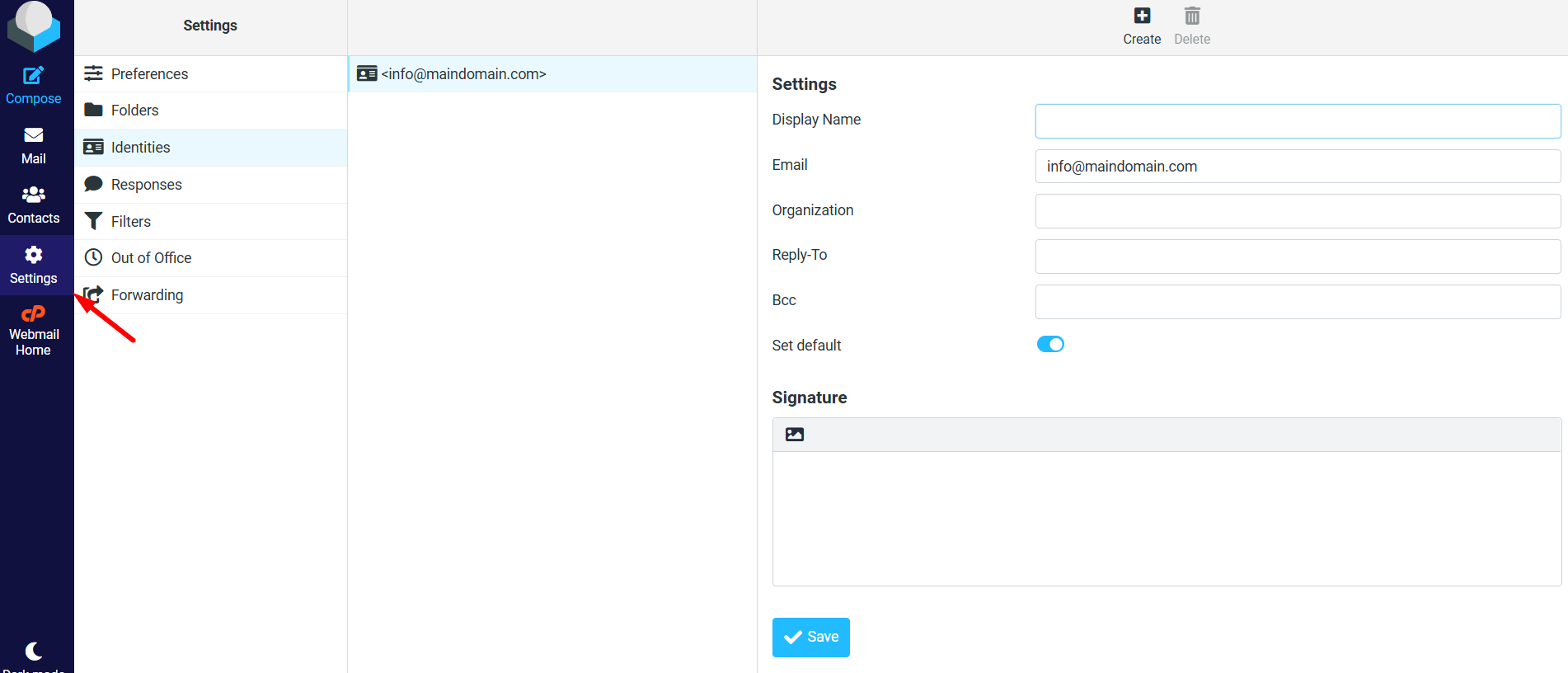
- Go to Settings → Identities.
- Click the identity you want to edit (or the default one).
Update your details
Here you can set the details that appear on outgoing mail:
- Display Name – the name recipients see (for example your full name or business name).
- Email – the sending address for this identity.
- Reply-To and Organization – optional, if replies should go elsewhere or you want a company name shown.
- Signature – text added to the bottom of your emails.
Make your changes and click Save. If you send from more than one address, click Create to add a separate identity for each, and set one as the default so it is used automatically for new messages.
For the signature, you can type plain text, or switch on the HTML signature option to add formatting, links, or a logo. Keep it short – a name, role, website, and phone number is plenty – so it looks tidy on both desktop and mobile. Remember that this identity only controls webmail; if you also read this mailbox in a phone or desktop app, set the same name and signature there too, so your outgoing mail looks consistent everywhere.
JetHost Experts Tip
Changing your Display Name here only affects how your name shows on email – it does not change your login or mailbox password. To change those, use Email Accounts in your hosting panel.
Related: Your webmail dashboard, Import and export contacts in Roundcube, How to change your email password.
Need more help?
Need a hand with identities or signatures? Open a ticket through Client Area → Support Tickets and our team will help you set them up.













