



Roundcube: change time, date & language
If your emails show the wrong time or the interface is in a language you don’t want, you can fix both in a minute. This guide shows how to change the time, date and language in Roundcube webmail. Every JetHost web hosting plan includes email.
Open your settings
- Log in to your webmail.
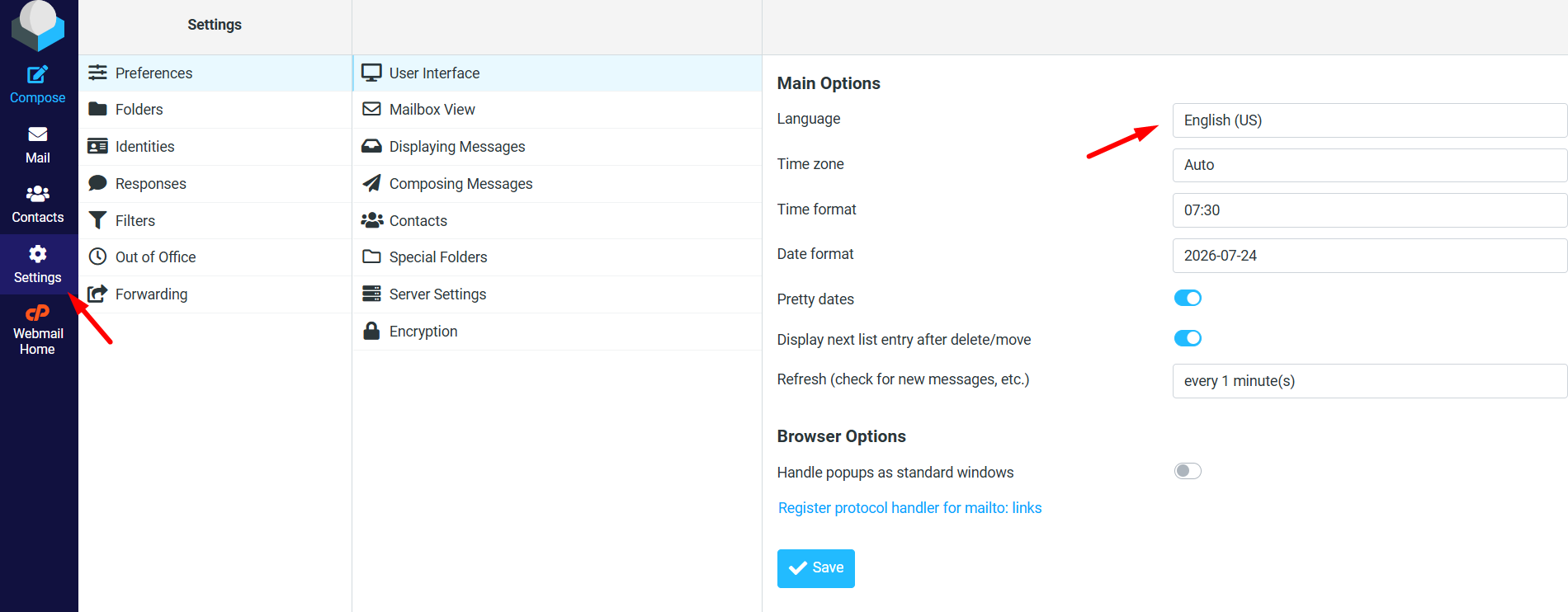
- Click Settings, then Preferences.
- Choose User Interface.
Change the language
In User Interface, pick your preferred Language from the drop-down. The whole Roundcube interface switches to it as soon as you save.
Change the time zone and date format
On the same screen, set your Time zone so messages show the correct local time. By default it follows the server, which is why times can look off. You can also choose how the date and time are displayed – for example a 24-hour clock or a day/month/year date.
Click Save when you are done, and your inbox updates straight away.
Why does this matter? The time zone decides the timestamp on every message you receive and send. If it is wrong, emails can look like they arrived hours earlier or later than they really did, which is confusing when you sort by date or reply to something time-sensitive. Setting it correctly once fixes this for good.
These settings are per user, so they only affect your own view. Other people using their own mailboxes are not changed, and you can adjust yours again at any time.
JetHost Experts Tip
If timestamps still look wrong after saving, set the time zone to a fixed city rather than “Auto”. Auto follows the browser, which can drift when you travel or use a VPN.
Related: Your webmail dashboard, Folders in Roundcube, Personal information in Roundcube.
Need more help?
Still seeing the wrong time or language? Open a ticket through Client Area → Support Tickets and we’ll help you get Roundcube set up the way you like.













